17.1 Two layers of access
SharePoint permissions on the site remain the real security boundary — they decide who can read and write the underlying lists. Application roles sit above that and decide what the interface offers: which navigation items appear, and which buttons are enabled.
Set the SharePoint permissions correctly first. Application roles shape the experience; they are not a substitute for site security.
17.2 Built-in roles
| Role | Intended for | Access summary |
|---|---|---|
| Organization Admin | The hiring system owner | Everything, including Settings, roles, audit log, exports, and lookups |
| Recruiter | Day-to-day recruiters | Full hiring operations; no Settings, user management, or lookup administration |
| Hiring Manager | Managers hiring into their team | Review and approve; cannot create candidates, edit the talent pool, view the audit log, or export |
| Read Only | Observers and auditors | View-only across the modules they are granted |
17.3 App administrators
- The person who runs Complete Setup is added as an app administrator and given the Organization Admin role.
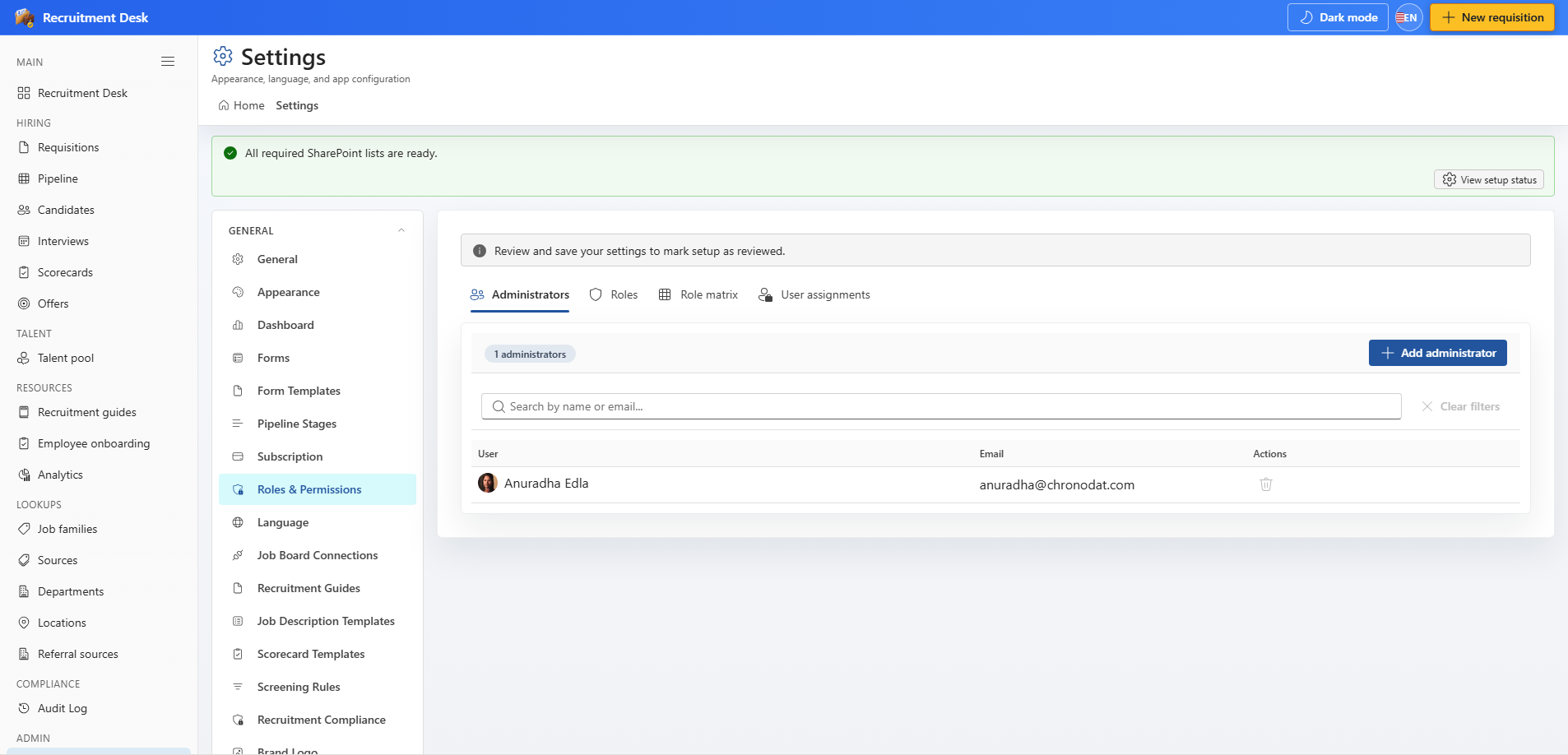
- Add further administrators from Settings → Roles & Permissions → Administrators.
- Site owners are always treated as having full access, whether or not they are listed as administrators.
- Keep at least two administrators so you are never locked out when one person is away.
17.4 Assigning roles
- Open Settings → Roles & Permissions.
- Administrators — manage who holds full administrative access.
- Roles — review the built-in roles or create your own.
- Role matrix — switch individual permissions on or off per role.
- User assignments — assign a role to each person who uses the app.
17.5 Permission areas
The permission matrix is grouped by area so you can reason about it quickly rather than toggling dozens of unrelated switches.
| Area | Controls |
|---|---|
| Requisitions | Create, edit, delete, and approve requisitions |
| Pipeline | Move candidates between stages and reject them |
| Candidates | Create and edit candidate records and documents |
| Interviews | Create, schedule, reschedule, and complete panels |
| Scorecards | Submit and view interview scorecards |
| Offers | Create, approve, and send offers |
| Talent pool | View and maintain pooled candidates |
| Communications | Send candidate emails |
| Audit and export | View the audit log and run data exports |
| Administration | Access Settings, manage users, and maintain lookups |
17.6 A sensible starting model
- Give recruiters the Recruiter role — they need the full hiring flow but not Settings.
- Give managers the Hiring Manager role so they can review and approve without editing candidate records.
- Give interviewers a role that reaches Interviews and Scorecards only.
- Reserve Organization Admin for the one or two people who own the configuration.