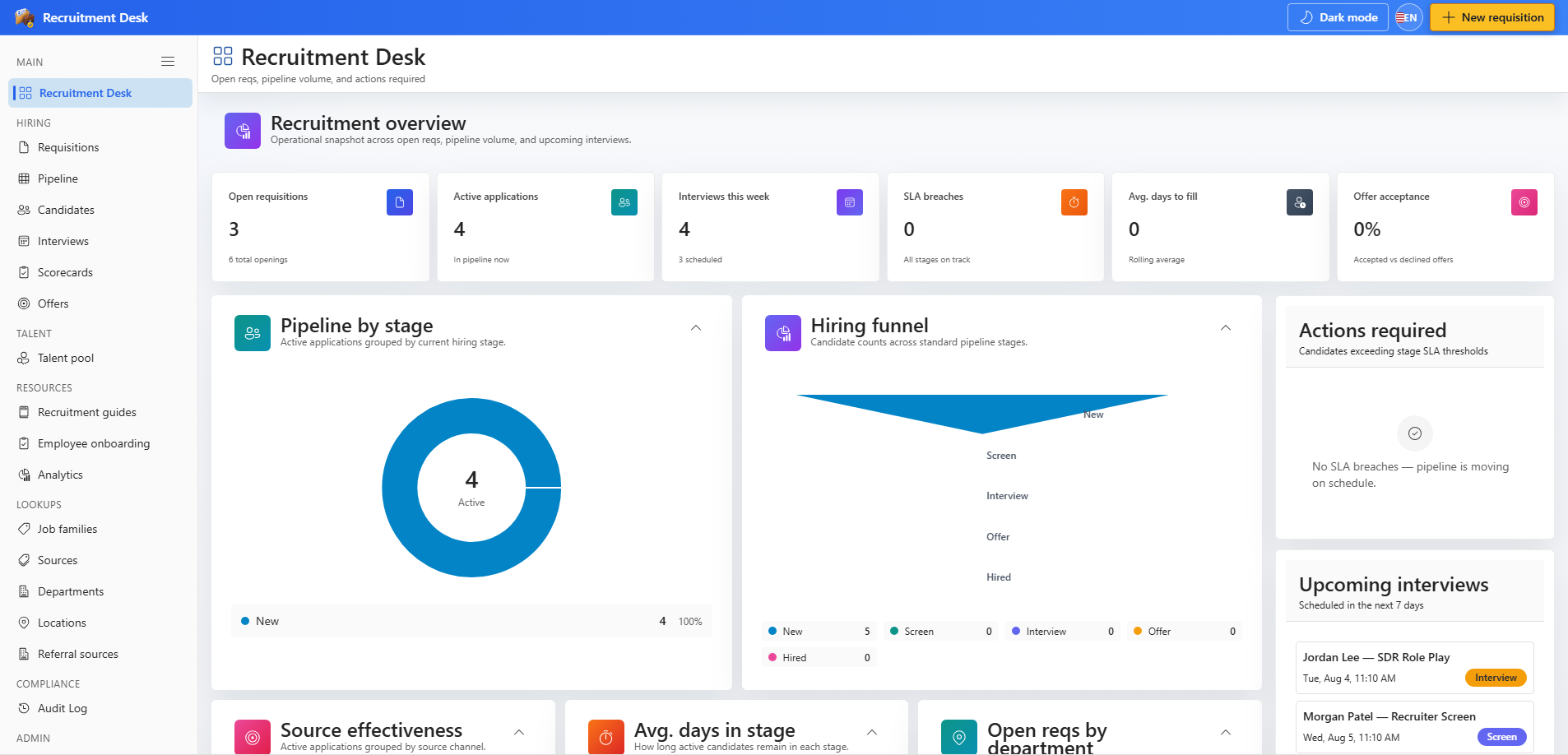
3.1 KPI cards
| Card | What it counts |
|---|---|
| Open requisitions | Requisitions currently in the Open status |
| Active applications | Applications with the Active status across all requisitions |
| Interviews this week | Scheduled interviews falling inside the current week |
| SLA breaches | Applications sitting in the same stage for more than seven days |
| Offers pending | Offers in PendingApproval, Approved, or Sent |
| Average days to fill | Mean elapsed days from requisition open to hire |
| Pending approvals | Requisitions and offers waiting on an approver |
| Offer acceptance rate | Accepted offers as a share of offers that received a response |
3.2 Charts
- Applications by stage — where candidates are concentrated right now.
- Applications by source — which channels produce your candidates.
- Recruitment funnel — conversion from application through to hire.
- Open requisitions by department — where hiring demand sits.
- Pipeline volume by requisition — which roles carry the most candidates.
- Average days in stage — where candidates are slowing down.
Charts load on demand to keep the first paint fast. Administrators can hide them entirely from Settings → Appearance, and can turn chart tooltips on or off from Settings → Dashboard.
3.3 Side panels
- Open requisitions — jump straight to a requisition record or its pipeline board.
- Upcoming interviews — the next scheduled panels with candidate and time.
- Actions required — candidates that have exceeded the stage SLA, so you can intervene before a good applicant goes cold.
Every card and chart respects your role. A reviewer who cannot see offers will not see offer metrics.
3.4 Personalising the dashboard
Administrators can adjust the dashboard from Settings → Dashboard.
- Give the dashboard a custom name, such as Hiring Overview.
- Use that custom name in the sidebar as well as the page heading.
- Show or hide chart tooltips.
- Show or hide the SLA alerts panel.