1.1 Requirements
- Microsoft 365 SharePoint Online. On-premises SharePoint Server is not supported.
- Access to the tenant App Catalog to upload the solution package.
- Full Control (site owner) on the SharePoint site where you run first-time setup, because setup creates lists.
- A modern SharePoint page to host the web part, or a Microsoft Teams team if you plan to pin it as a tab.
1.2 Deploy the app
- Upload the Learning Management Hub package to the tenant App Catalog and choose to make it available to all sites, or deploy it to selected sites.
- On the target SharePoint site, open Site contents → New → App and add Learning Management Hub.
- Create or edit a modern page, add the Learning Management Hub web part, and publish the page. A full-width page section gives the best result.
1.3 Complete Setup
The first time the app loads on a site it shows a setup wizard instead of the normal navigation. Only Complete Setup is available until provisioning finishes. Run it as a site owner.
- Open the published page as a site owner and choose Complete Setup or Run setup.
- Wait until the required SharePoint lists are provisioned.
- Optional: seed sample or standard training content from Settings → Setup status.
- Open Settings → General to set the app display name and education mode.
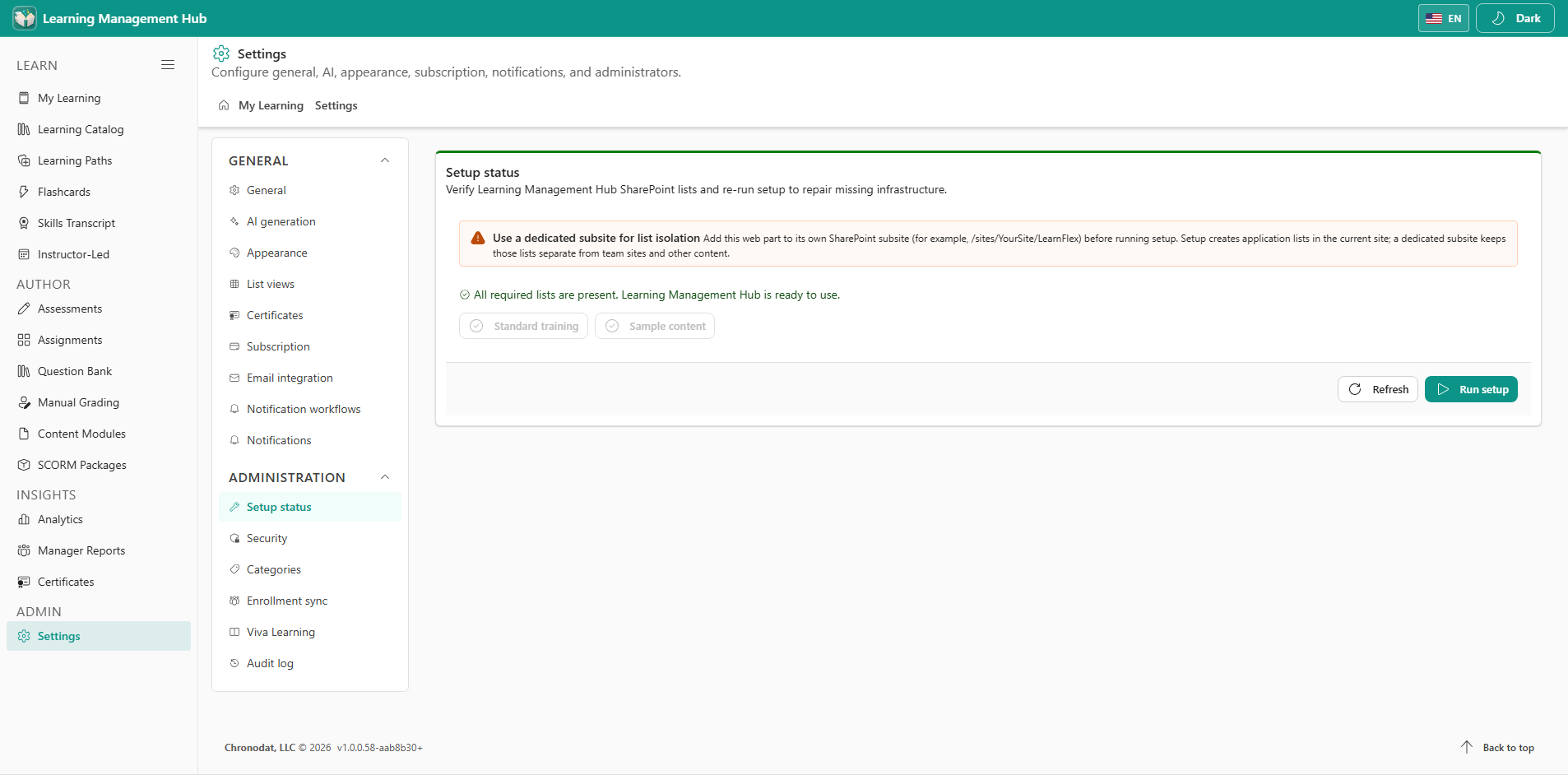
Use a dedicated site collection for production. Run Complete Setup as a site owner before learners arrive.
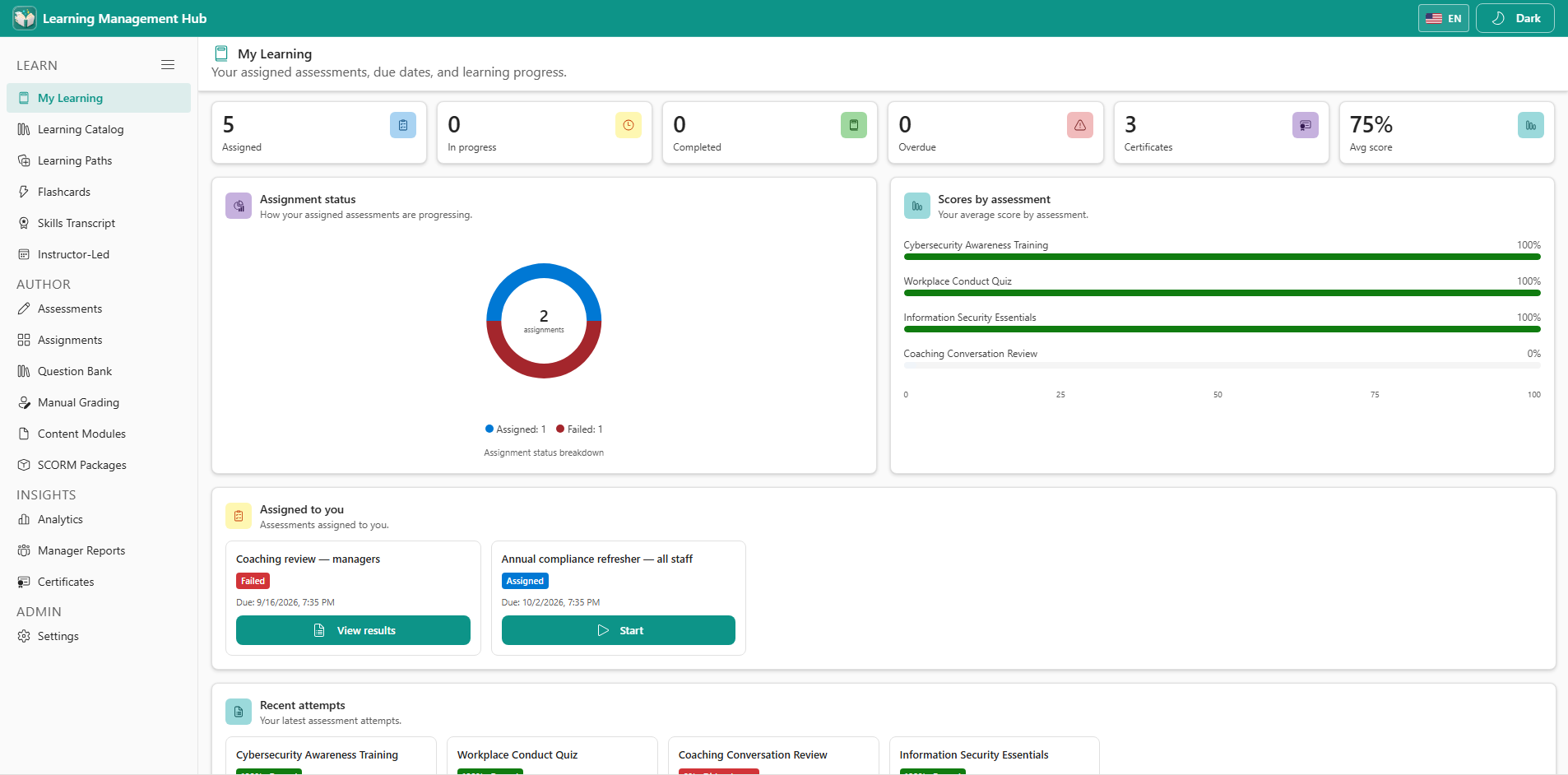
The left sidebar groups navigation into LEARN, AUTHOR, INSIGHTS, and ADMIN. Settings only appears for app administrators.
1.4 Add Learning Management Hub to Microsoft Teams
- In a Teams channel choose Add a tab, then pick the Learning Management Hub app.
- Point the tab at the SharePoint page hosting the web part, or add it as a personal app.
- The Teams experience shows the same navigation, data, and permissions as the SharePoint page.
1.5 Verify the installation
| Check | Expected result |
|---|---|
| Setup banner | No longer shown after Complete Setup finishes |
| Sidebar | Shows My Learning, Learning Catalog, Assessments, Assignments, Analytics |
| Site contents | Contains the learning, assignment, attempt, and settings lists |
| Settings | Visible to the account that ran setup |
| New assessment | Enabled in Authoring for authors and administrators |
Additional App Functionality
Subscription, Trial, and Licensing
Learning Management Hub includes a 14-day free trial on each site collection where it is installed. Site owners manage the subscription from Settings → Subscription.
Licensing is per site collection, not per user seat. Every learner, author, and manager on the site is covered by the same license.
If the trial expires without an active subscription the app shows a paywall instead of the learning modules. Your SharePoint data is not deleted and becomes available again as soon as the subscription is activated.
- Trial length: 14 days from first activation on the site.
- Scope: one license per SharePoint site collection.
- Billing: managed from Settings → Subscription, which links to the checkout and billing portal.
- Offline tolerance: a short cached grace window keeps the app usable if the licensing service is briefly unreachable.
Email and Graph Permissions
Learning Management Hub works without Microsoft Graph permission, but optional scopes unlock assignment email and manager reports.
- Mail.Send — sends assignment, reminder, and completion emails from the signed-in mailbox or the configured Graph path.
- User.Read.All (or equivalent manager-report access) — lets Manager Reports show completions for direct reports.
- A tenant administrator approves Graph requests in SharePoint Admin Center → Advanced → API access.
- If you prefer not to grant Mail.Send, switch Settings → Email integration to the Chronodat mail API or to notification workflows.