5.1 Enable Frameworks (Administrator)
- Open Settings → Compliance.
- Enable built-in frameworks (ISO 27001, NIST CSF, GDPR, HIPAA, PCI-DSS, SOC 2, and others) or create a custom framework.
- Click Save settings. Controls are seeded on the first use of each framework.
5.2 Create and Run an Assessment
- Go to Compliance → Compliance Frameworks and click New Assessment.
- Enter a name, select an active framework, and optionally set a due date.
- Save, then open the assessment from the list.
- For each control, set the status (Compliant, Non-Compliant, Partially Compliant, or Not Applicable) and record evidence and notes.
- Monitor progress on the Compliance Dashboard.
- When all controls are assessed, change the assessment status to Complete.
5.3 Compliance Dashboard KPIs
| KPI / chart | Meaning |
|---|---|
| Overall compliance score | Weighted posture across active assessments and control statuses |
| Framework coverage | Share of enabled frameworks with at least one assessment started |
| Open gaps | Controls marked Non-Compliant or Partially Compliant |
| Assessment progress | Controls evaluated versus total controls in scope |
| Recent activity | Latest assessment updates and evidence uploads |
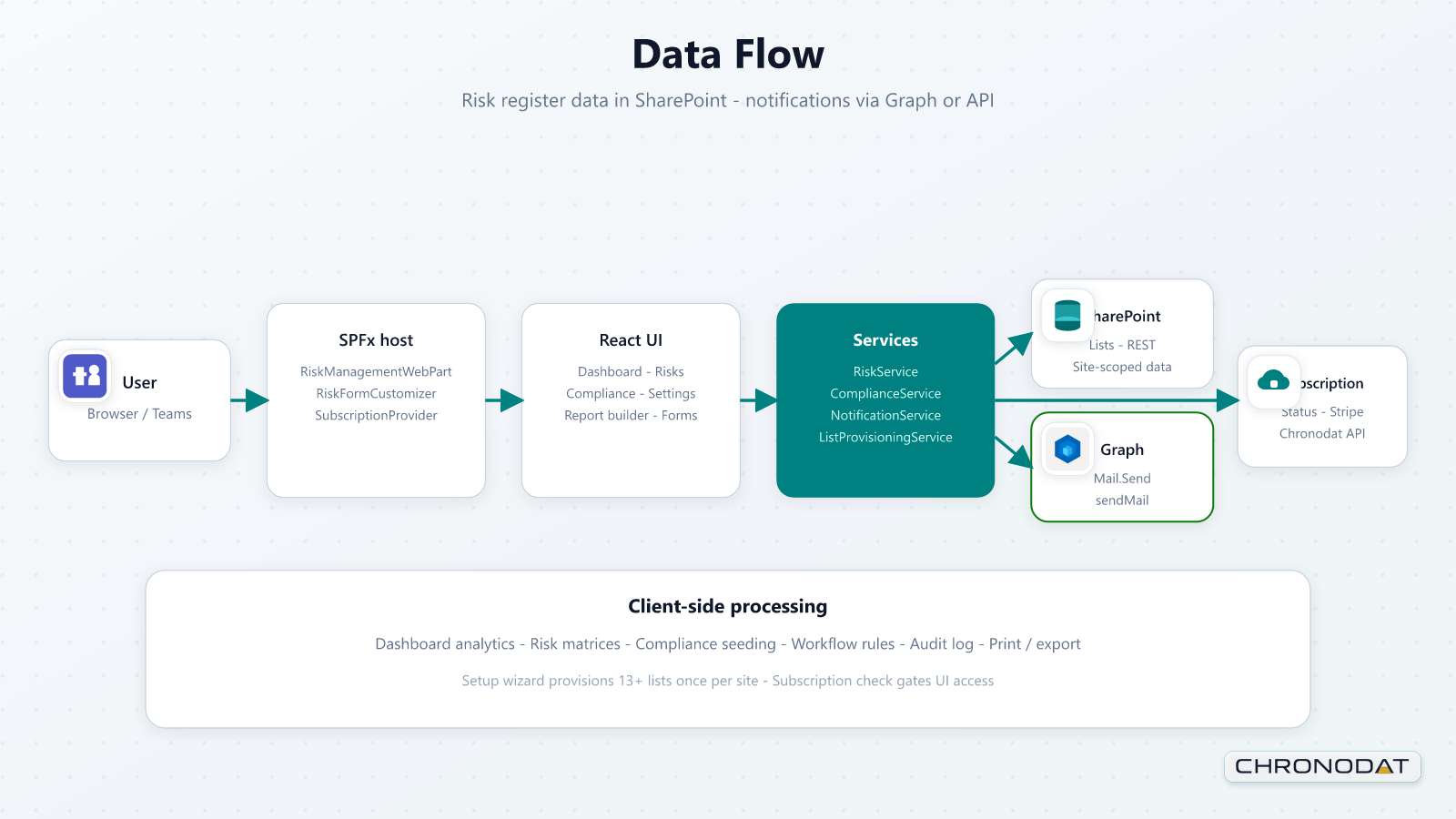
| First visit The first visit to the Compliance area may seed the built-in frameworks and controls — allow extra load time. Subsequent visits read directly from the SharePoint lists on the site. |
|---|
5.4 Link Risks to Compliance Controls
- Ensure frameworks are enabled under Settings → Compliance.
- Create or open a risk, and note its Risk ID and category.
- Open Compliance → Compliance Frameworks and select the relevant framework.
- Open an assessment and locate the control that maps to the risk domain.
- Record evidence or notes on the control, referencing the Risk ID in the evidence text for traceability.
- Use the Compliance Dashboard to monitor posture, and Report Builder (Risks source) for risk-level exports.
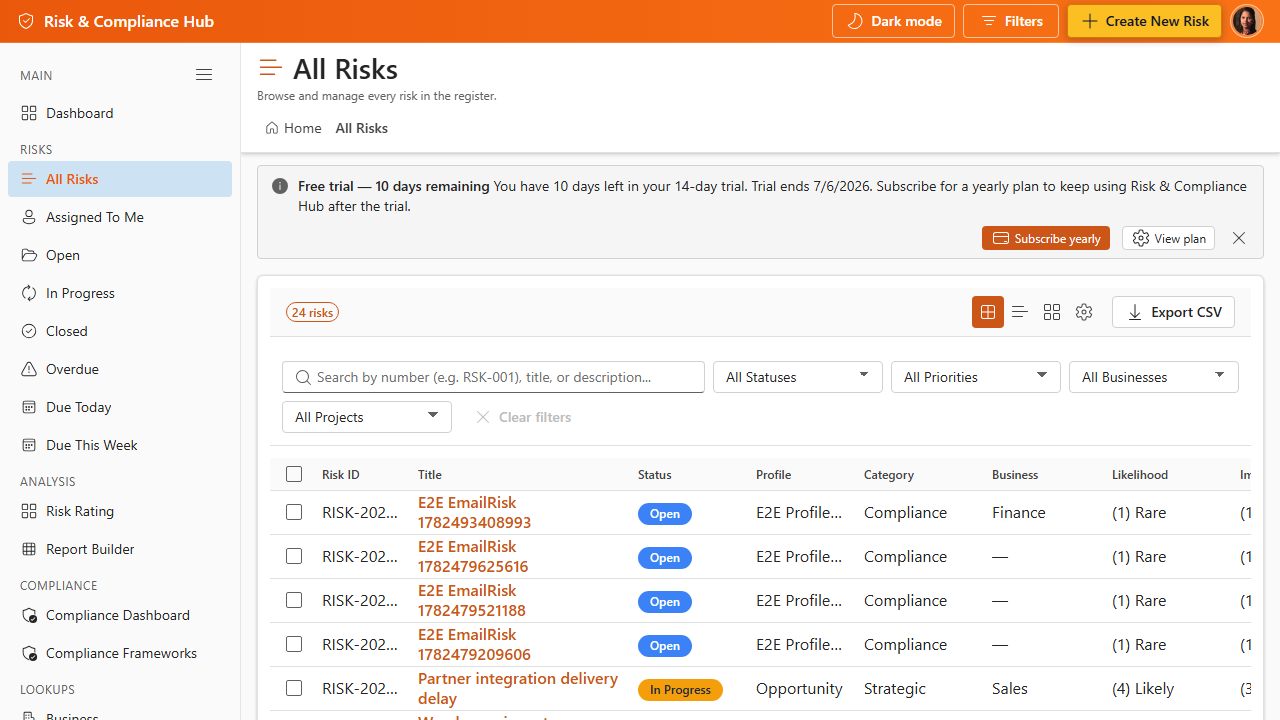
Risks and compliance share the Business and Project lookups and the same SharePoint site permissions model. Unified sidebar navigation lets auditors move between the risk register and compliance views without leaving the application.
Additional App Functionality
Risk and Control Linking
Compliance assessment items can be linked to risks so teams can show how risks relate to controls, tests, and mitigation activities. This creates traceability between the risk register and compliance evidence instead of maintaining separate spreadsheets.
- Open a compliance assessment and expand the relevant control.
- Use the risk-linking controls to associate one or more risks with the assessment item.
- Choose the relationship type that best describes the connection, such as mitigation, testing, evidence, or dependency.
- Review linked risks during compliance status updates to understand whether open risks affect control posture.
Framework Library and Custom Frameworks
The Compliance area includes a framework library where built-in and custom frameworks can be reviewed by category and control. Administrators can enable built-in frameworks or create custom frameworks for internal policies, customer requirements, or industry-specific controls.
- Use framework detail pages to browse controls before starting an assessment.
- Create or edit custom frameworks from Compliance settings when built-in frameworks do not match your program.
- Keep control names, categories, and descriptions clear because they appear in assessment screens and reports.