7.1 Who Can Configure What
| Role | Property pane | In-app Settings | Dashboard | Subscription |
|---|---|---|---|---|
| Site owner | Yes | Yes | Yes | Yes |
| Admin user/group | No* | Yes | If in management list | Yes |
| Management user/group | No | No | Yes | No |
| All other users | No | No | No | View directory only |
*Unless also a site owner. In Teams, admins use the in-app Settings tab; access control still requires editing the host SharePoint page or property pane during tab setup.
7.2 Property Pane — General
| Setting | Description |
|---|---|
| Title | Main heading in the directory header |
| Subtitle | Secondary line; leave blank to hide |
| Use sample data | Off in production — loads live Microsoft Graph profiles |
7.3 Property Pane — Display & Filters
| Setting | Description |
|---|---|
| Show summary stats in directory | Total People / Departments / Locations cards |
| Show A–Z alphabet bar | Letter quick-filter |
| Department / Location / Skills / Languages filter | Toggle facet filters in the search panel |
7.4 Property Pane — Appearance
| Setting | Description |
|---|---|
| Page layout width | Full width or compact (centered panel) |
| Default view | Cards, grid, or list |
| Card layout | Card density and style options |
| Profile photos | Microsoft 365 photos or initials only |
| Color scheme | Blue, teal, green, or purple theme |
| Table rows per page | 25–250 for list view |
| Custom logo URL | Optional image beside the title |
7.5 Access Control
- Admin users and Admin groups — users with Settings, Help, and subscription access.
- Management users and Management groups — users who can open the Dashboard analytics tab.
- Use Microsoft 365 security groups (not M365 groups) where noted for group pickers.
- Empty lists mean only site owners have admin access.
7.6 Exclusions
Administrators hide sensitive or non-employee records from the directory using Settings → Exclusions. Rules apply immediately after Save settings and affect search, browse tabs, org chart, and export.
- Exclude departments — comma-separated department names hidden from search.
- Exclude users — comma-separated names, emails, or UPN fragments to hide.
- Exclude locations, job titles, countries, and cities — filter by office or role fragments.
- Exclude managers or manager teams — hide a manager and their reporting subtree.
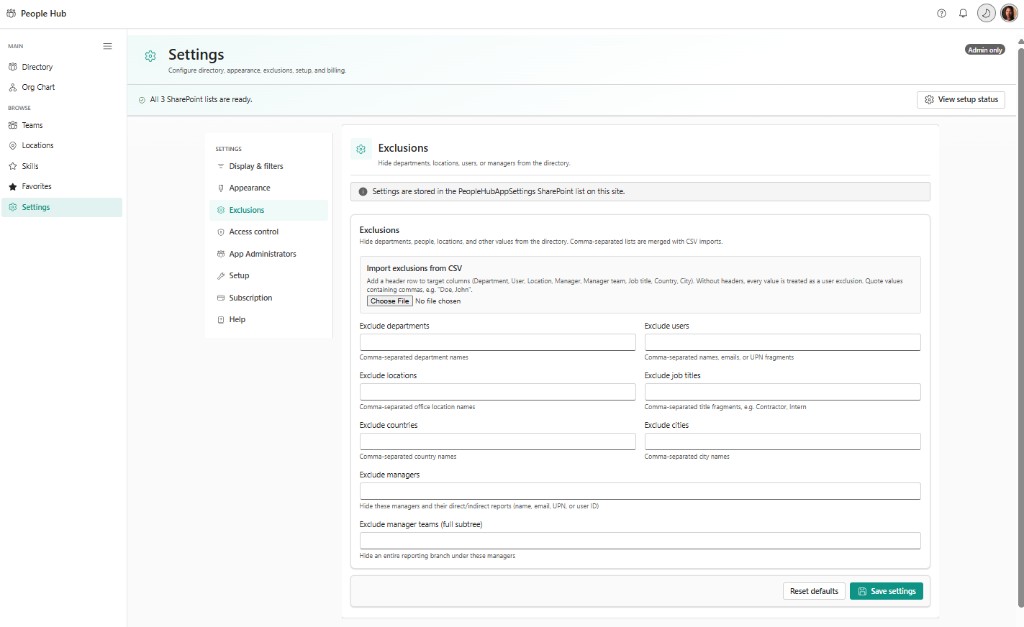
The Exclusions tab is part of the in-app Settings experience (administrators only). Each text field accepts comma-separated values — for example, hiding contractors by job title or excluding an entire branch under a service account manager. Import exclusions from CSV provides bulk onboarding for large exclusion lists; the header row must name the column type (Department, User, Location, Manager, and so on). Settings persist in the PeopleHubAppSettings SharePoint list on the host site. The setup banner confirms SharePoint lists are ready before you save production rules.
7.7 Subscription Settings
Configure Subscription API URL in Settings → Subscription (stored in PeopleHubAppSettings on the site). When set, each site collection receives a 14-day trial; admins subscribe at $299/year per site collection with unlimited users.
Additional App Functionality
Org Chart and Viva Connections
The People Hub Enterprise Org Chart web part has a smaller property pane (title, mock data toggle, appearance). It does not gate on subscription independently — host it on a separate page for Teams Org Chart tabs.
Add the People Hub Enterprise adaptive card extension to a Viva Connections dashboard. The card shows availability stats; quick view opens the full directory.
Common Admin Tasks
- Add a new admin — Property pane → Admin users → save → publish.
- Hide HR from directory — Exclusions → Exclude departments → Human Resources.
- Change brand colors — Appearance → Color scheme; optional Logo URL.
- Fix Teams settings — Edit host SharePoint page property pane; in-app Settings for filters.