4.1 Where to Find the Org Chart
- Teams: Open the Org Chart tab in the People Hub Enterprise app.
- SharePoint: Navigate to the dedicated People Hub Enterprise Org Chart page.
- Directory: Open a person's profile and view their org subtree.
4.2 Org Chart Controls
| Control | What it does |
|---|---|
| Search and focus on a person | Find and center a specific person in the chart |
| My chain | Show your management chain from you to the top |
| Reset | Return to the default root view |
| Collapse all | Collapse all expanded nodes |
| Print the current chart | |
| Download PDF | Export the chart as a PDF |
| Department chips | Filter visible nodes by department |
| Click a node | Expand to show direct reports (loaded on demand) |
Direct reports load lazily from Microsoft Graph when you expand a node. If a person has no direct reports in Microsoft 365, the node will not expand further.
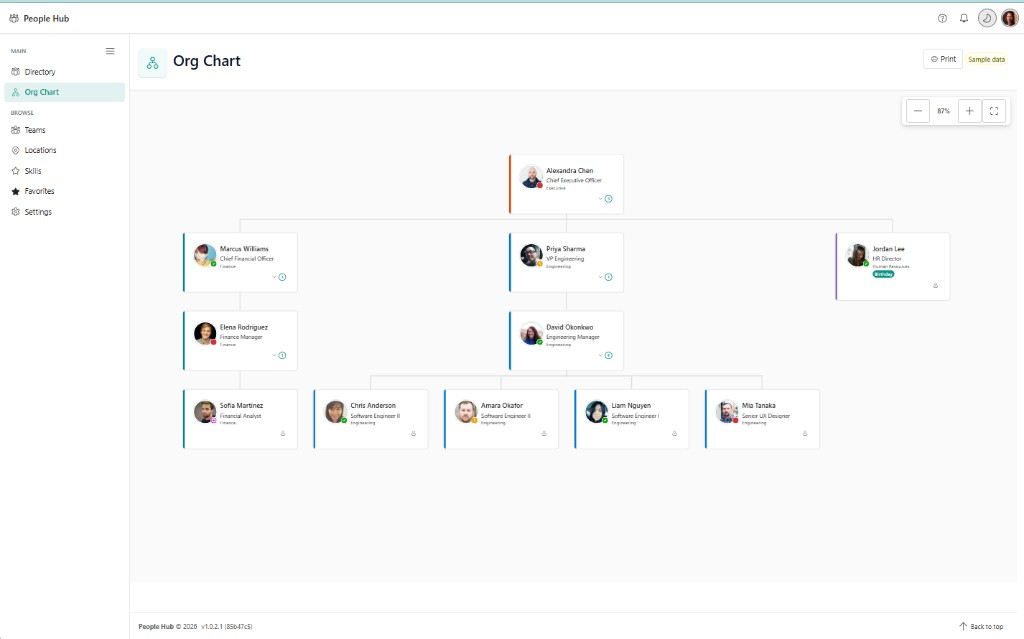
The org chart renders your Microsoft 365 manager hierarchy from the CEO downward. Colored left borders group nodes by department (Executive, Finance, Engineering, Human Resources). Click a node to expand direct reports — David Okonkwo's engineering team shows four reports in this view. Zoom controls and Print appear in the header; a Birthday badge highlights celebrations on the chart. Use the sidebar Org Chart link or the dedicated SharePoint org chart page to open this view.