3.1 Quick Keyword Search
- Click the search box at the top of the directory.
- Type a name, job title, department, or other keyword.
- Results update as you type.
3.2 AI-Assisted Search (Find People)
For more complex queries, expand AI & advanced search and describe who you are looking for in plain language. Click Find and review the Interpreted as summary to confirm filters.
- Example: Who in Finance speaks Spanish in Houston
- Example: React engineers in Seattle
- Example: Marketing managers in London
The Rule-based AI badge indicates the built-in intent resolver. Administrators may upgrade to a cloud AI service in the future.
3.3 Filters and A–Z Browse
- Click Filters in the toolbar. A badge shows how many filters are active.
- Narrow by Department, Location, Job title, Languages, or Skills (availability depends on admin settings).
- When enabled, use the A–Z bar to show people whose surname or display name starts with a selected letter.
3.4 Browse by Department
- Open the Departments tab.
- Browse department groups and member counts.
- Click a department — People Hub Enterprise switches to the Directory tab with that filter applied.
3.5 View Modes
| View | Best for |
|---|---|
| Tiles | Visual card browsing (default) |
| Grid | Compact card grid |
| List | Scannable name list |
| Table | Sortable columns with pagination |
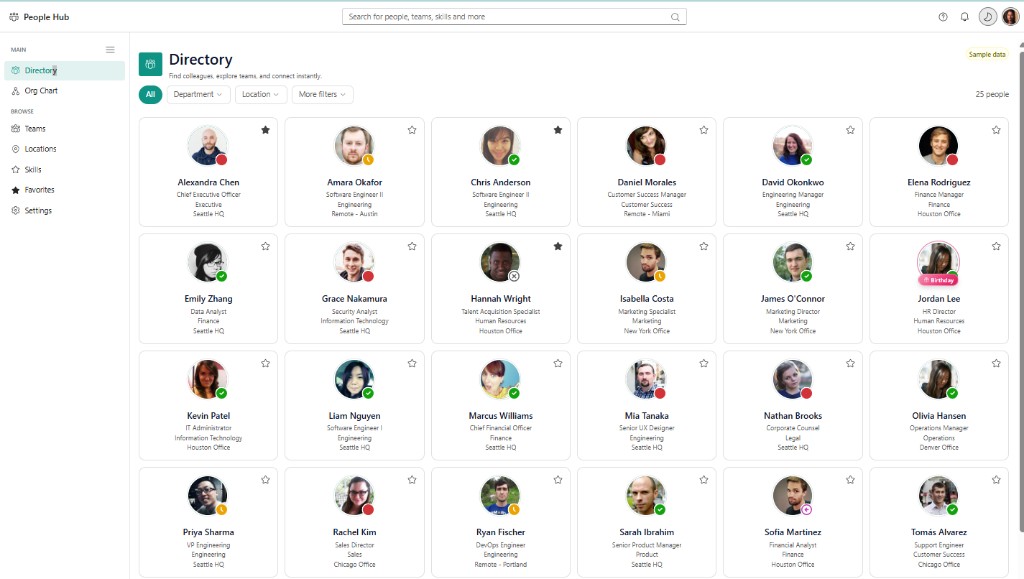
The Directory is the default landing view. The top search bar finds people by name, title, department, or keyword. Filter chips for Department and Location narrow the grid; the All chip resets filters. Each card shows a profile photo, live presence dot, name, job title, department, and office location. Star icons pin colleagues to Favorites. In this sample tenant, 25 people are shown — production tenants display live Microsoft Graph data for your organization.
Additional App Functionality
Summary Statistics
When enabled by your administrator, three cards appear above results: Total People, Departments, and Locations. Click Refresh in the toolbar to reload the latest directory data from Microsoft 365.