1.1 Requirements
- SharePoint Online (not on-premises SharePoint Server).
- A modern browser: Microsoft Edge, Google Chrome, Mozilla Firefox, or Safari.
- SharePoint Administrator or Global Administrator to upload the .sppkg to the tenant app catalog.
- Site owner permission on the target site to add the web part and publish pages.
- Recommended: a dedicated site or subsite for asset management.
1.2 Deploy the App (Tenant Administrator)
- Build or obtain the production package asset-management.sppkg from the solution release pipeline.
- Open SharePoint Admin Center → Apps → App Catalog and upload the .sppkg file.
- When prompted, deploy the package and make it available to all sites.
- Approve Microsoft Graph Mail.Send if you plan to use email notifications.
1.3 Add the Web Part (Site Owner)
- Create or edit a modern SharePoint page on your target site.
- Click + to add a web part and search for Asset Management Hub.
- Publish the page. Users open the app from that SharePoint URL or a Teams tab.
1.4 First-Time Setup
If SharePoint lists have not been provisioned yet, a Complete Setup banner appears. A site owner or app administrator must run the setup wizard to create required AM_* lists. Until setup completes, most features are unavailable.
- Publish the page before running setup — the wizard does not run while the page is in edit mode.
- Click Complete Setup and wait until all lists are created.
- Open Settings → General to set the app display name (for example Asset Management Hub).
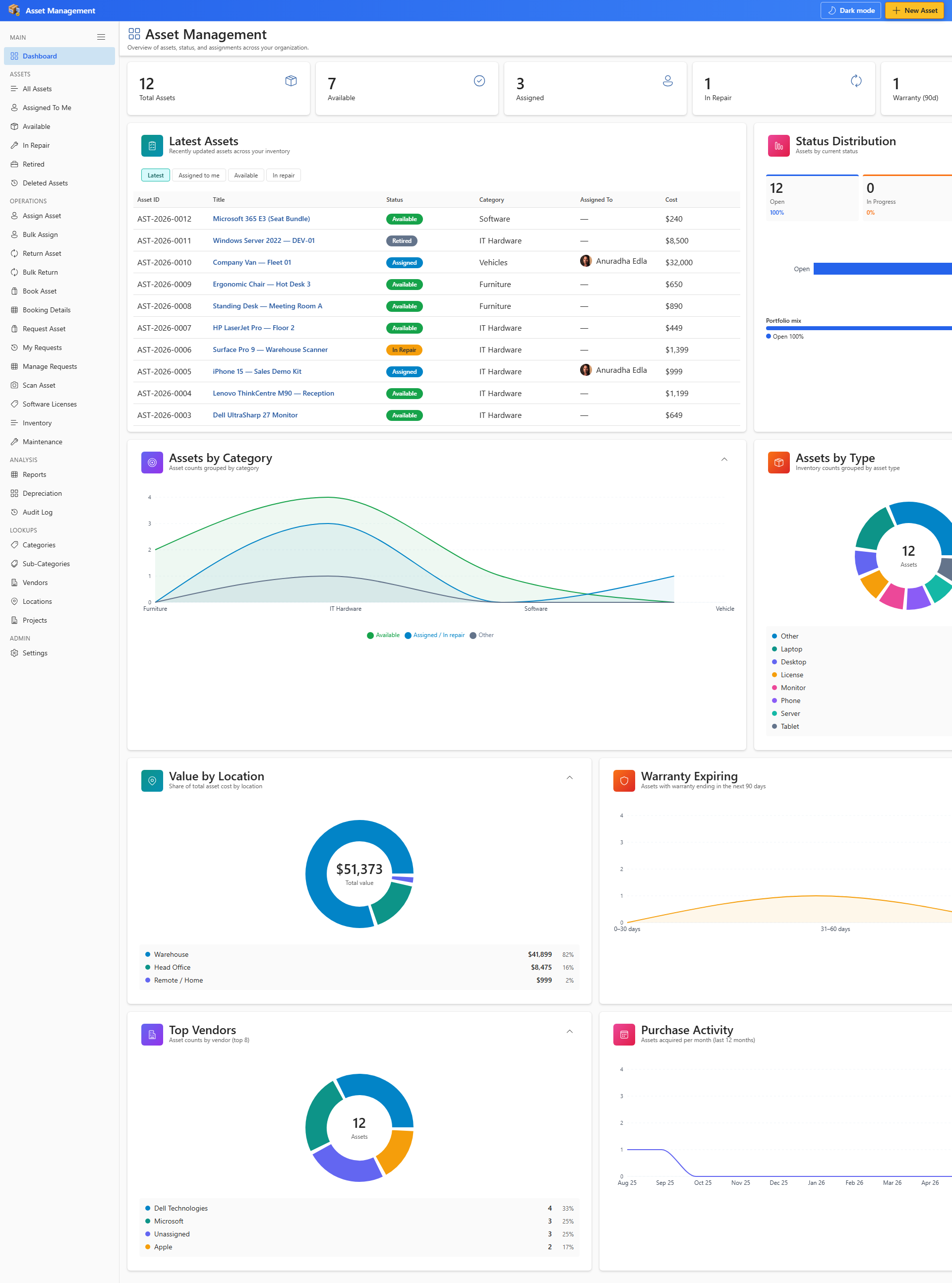
The left sidebar groups navigation into Main, Assets, Operations, Analysis, Lookups, and Admin. A setup banner appears until provisioning finishes.
Additional App Functionality
Subscription, Trial, and Licensing
Asset Management Hub includes a 14-day free trial per site collection. Site owners manage licensing from Settings → Subscription.
Licensing is per site collection — not per user seat.