2.1 Layout Areas
| Area | Description |
|---|---|
| Left sidebar | Primary navigation grouped into Main, Assets, Operations, Analysis, Lookups, and Admin |
| Header | Page title, breadcrumbs, dark mode toggle, and New Asset action |
| Main content | Page-specific lists, forms, charts, and actions |
| Footer | Version and copyright line |
2.2 Navigation Groups
- Main — Dashboard.
- Assets — All Assets, Assigned To Me, Available, In Repair, Retired, Deleted Assets.
- Operations — Assign, Return, Book, Request, Scan, Inventory, Software Licenses, Maintenance.
- Analysis — Reports, Depreciation, Audit Log.
- Lookups — Categories, Sub-Categories, Vendors, Locations, Projects.
- Admin — Settings (site owners and app administrators).
Use Collapse navigation on smaller screens. The pages you see depend on your SharePoint permissions and app role assignments.
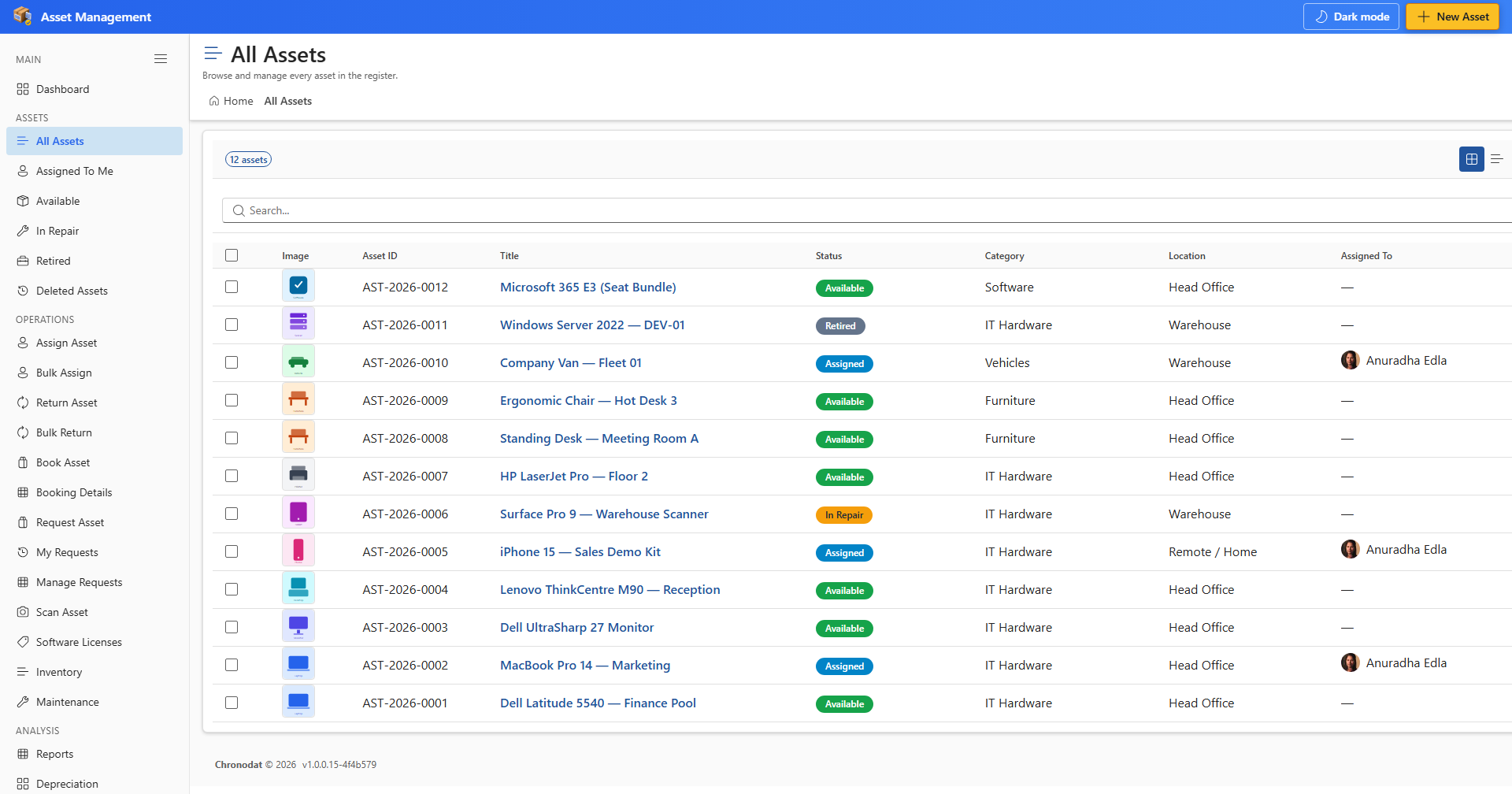
Every primary page shares the same sidebar. Status pills use color coding: Available (green), Assigned (blue), In Repair (orange), Retired (gray).
