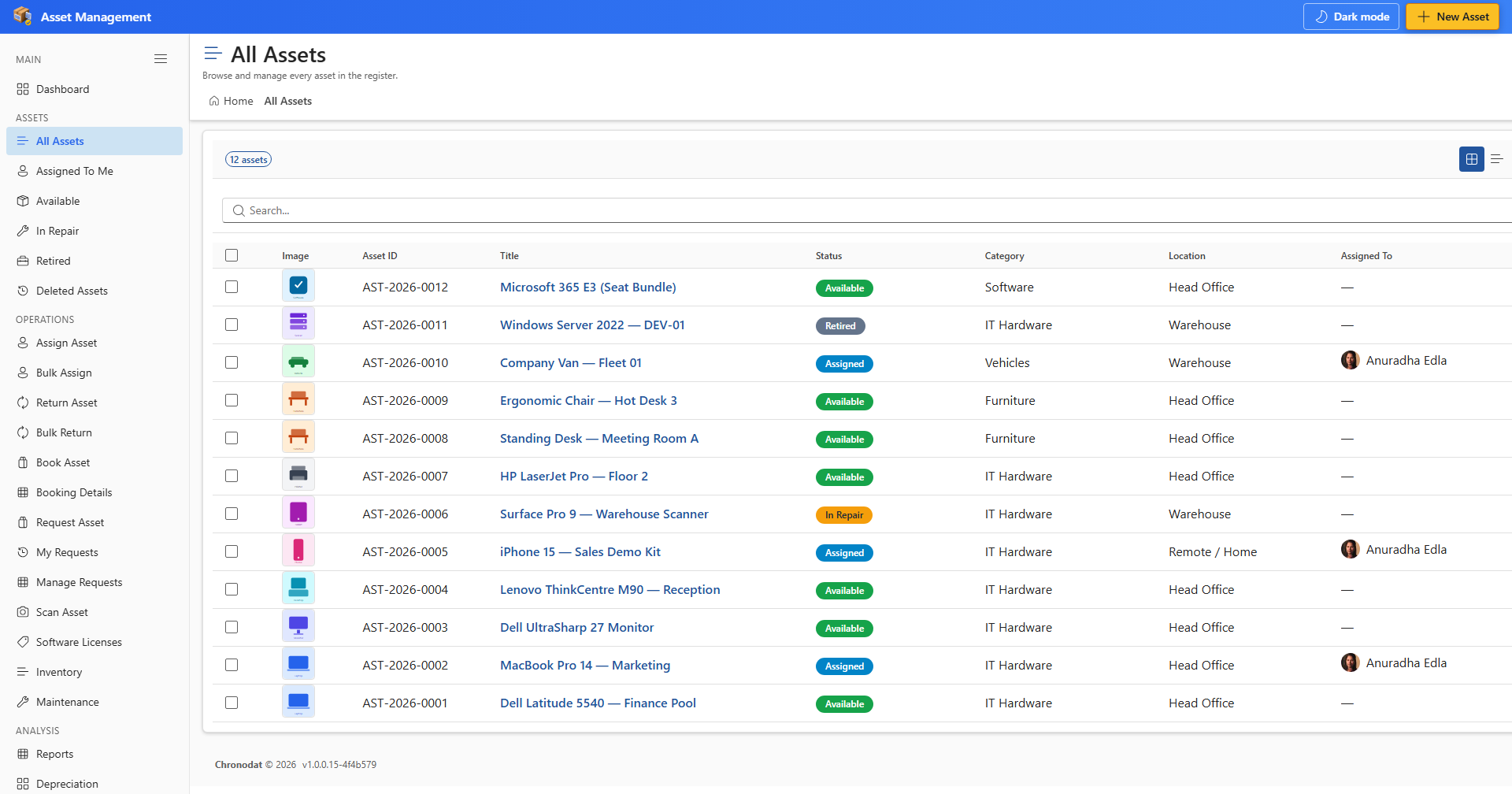
4.1 Browse and Search
- Open All Assets from the ASSETS section.
- Use the search box to find assets by ID, title, serial number, or tag.
- Switch between table, list, and card views using the view toggle in the toolbar.
- Apply filters for status, category, location, or assigned user.
- Click Create Asset (or New Asset) to add a new item.
4.2 Create or Edit an Asset
- Click Create Asset or open an asset title from any list.
- On the General tab, enter Title, Category, Status, and other required fields.
- Complete Financial, Assignment, and Maintenance tabs as needed.
- If the category has a linked form template, fill extra fields shown below the main tabs.
- Add attachments in the attachments section.
- Open the Activity tab on an existing asset to view SharePoint version history.
- Click Save to persist changes.
4.3 Asset ID and Status
Asset IDs follow the AST-YYYY-NNNN pattern. Status drives which operations are available — only available assets can be assigned or booked without override.