1.1 Requirements
- Microsoft 365 SharePoint Online (on-premises SharePoint Server is not supported).
- A modern browser: Microsoft Edge, Google Chrome, Mozilla Firefox, or Safari.
- SharePoint Administrator or Global Administrator role to upload the .sppkg to the tenant app catalog.
- Site owner permission on the target site to add the web part and publish pages.
- Recommended: a dedicated site or subsite for time tracking and billing (for example /sites/timesheets).
1.2 Deploy the App (Tenant Administrator)
- Build or obtain the production package sharepoint/solution/timesheets.sppkg (run npm run ship in the solution).
- Open SharePoint Admin Center → Apps → App Catalog and upload the .sppkg file.
- When prompted, deploy the package and make it available to all sites.
- On the target site, confirm the app is available from the tenant catalog.
1.3 Add the Web Part (Site Owner)
- Create or edit a modern SharePoint page on your target site.
- Add a full-width section and insert the Time & Billing Hub web part.
- Publish the page. Users open the app from that SharePoint URL.
1.4 First-Time Setup
If SharePoint lists have not been provisioned yet, a Setup required banner appears at the top of the app. A site collection owner must run the setup wizard to create required lists. Until setup completes, most features are unavailable. App administrators can open Settings → Setup status to review progress but cannot run provisioning without site owner permission.
- Publish the SharePoint page before running setup — the wizard does not run while the page is in edit mode.
- Click Complete Setup on the banner, or open Settings → Setup status → Complete Setup.
- Wait until all provisioning steps show a green checkmark, then the app loads normally.
- Each user is linked to an Employee record on first visit or when added under Team Members.
For the full provisioning checklist, sample data catalog, and SharePoint list inventory, see Onboarding and Setup Reference in this knowledge base.
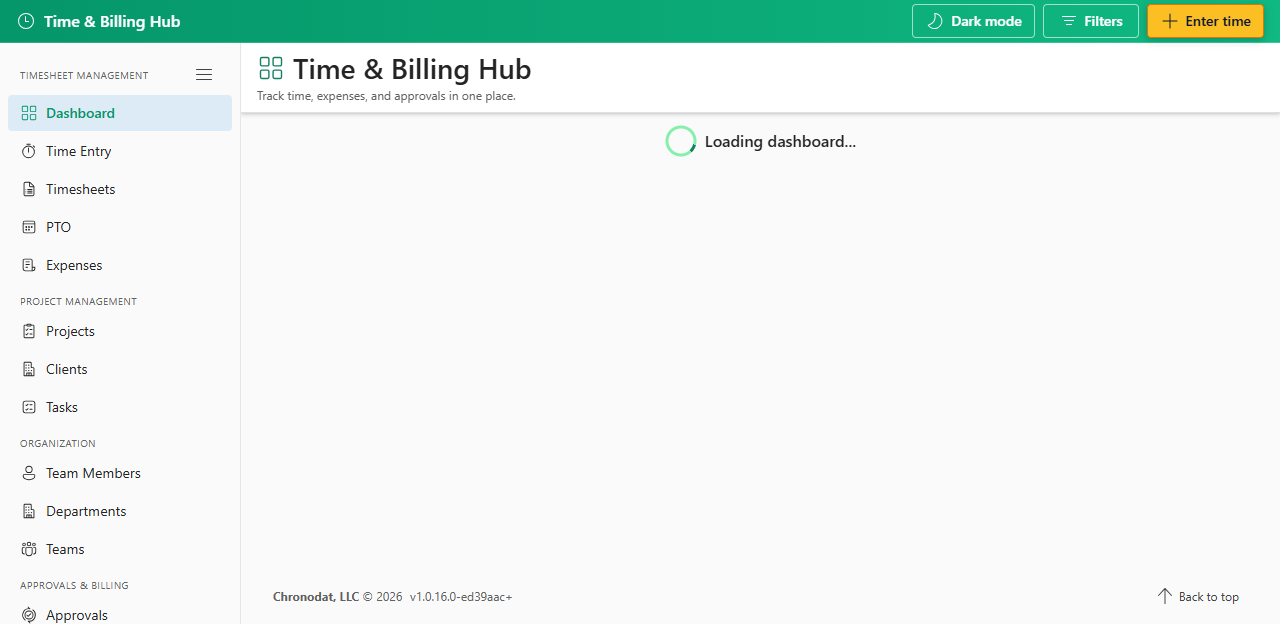
The left sidebar groups navigation into Time, Organization, Billing, and System. The header shows the current page title and portfolio filters where applicable.
Additional App Functionality
Subscription, Trial, and Access
Time & Billing Hub includes a 14-day free trial per site collection. Site owners or delegated app administrators manage licensing from Settings after configuring the subscription API URL.
If a subscription expires, the app may show a lock screen until an administrator renews.