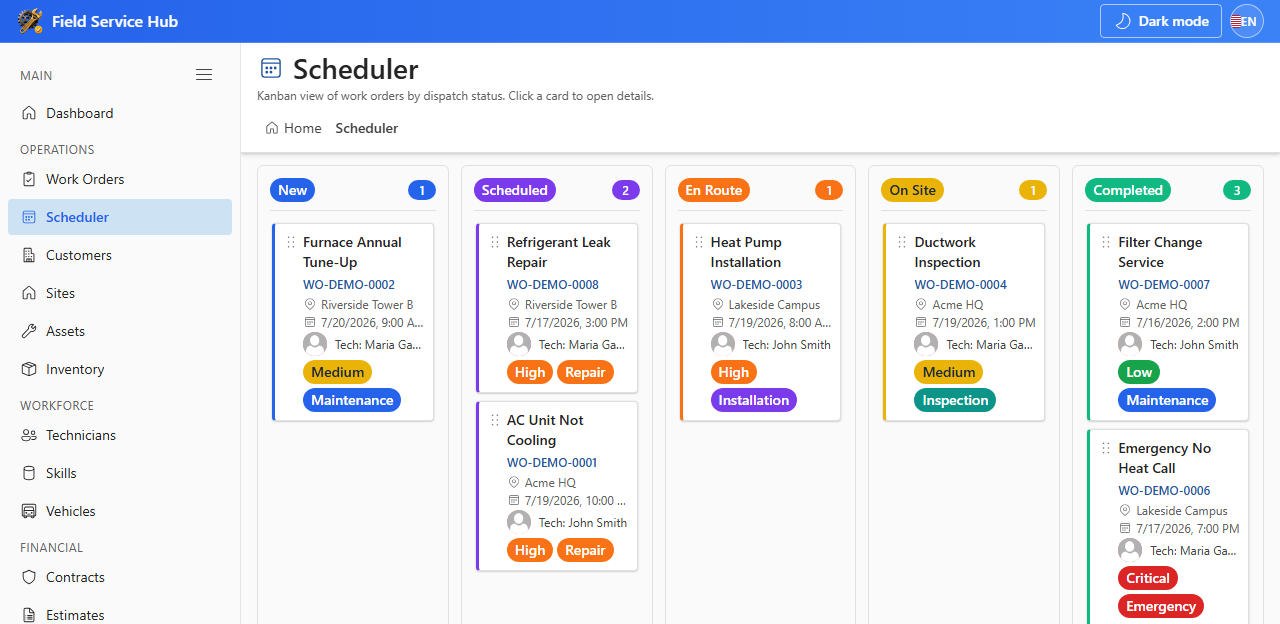
The Scheduler provides a visual dispatch board for coordinators and dispatchers. It reads the same FSM_WorkOrders list as the Work Orders page.
5.1 Using the Board
- Open Scheduler from the Operations section.
- Review columns: New, Scheduled, En Route, On Site, Completed.
- Click a card to open the full work order panel.
- Move cards between columns to update status when drag-and-drop is enabled.
- Column counts show backlog and workload at a glance.
5.2 Custom Status Mapping
Each work order status maps to a workflow bucket under Settings → Work Order Status. Buckets determine which Scheduler column displays a job.
- Add custom statuses with name, color, and bucket assignment.
- Save settings — status names sync to the SharePoint list.
Pin the Scheduler as a Microsoft Teams channel tab so dispatchers work where the team collaborates.