13.1 When Setup Runs
Setup is required when any of the 15 required SharePoint lists are missing or incomplete. The app shows a Complete Setup banner until provisioning finishes. Only a site collection owner (Full Control) can run setup. App administrators can open Settings to review status but cannot provision lists without site owner permission.
- First visit after deploying the web part — setup banner or wizard
- Complete Setup banner — site owner only
- Settings → Setup status — review list readiness and re-run if needed
Publish the SharePoint page before running setup. The wizard does not run while the page is in edit mode.
13.2 Setup Wizard Steps
| Step | What happens |
|---|---|
| Permission check | Verifies site owner access and detects existing FSM_ lists |
| List provisioning | Creates 15 SharePoint lists with fields, lookups, and views |
| Seed data (optional) | Loads demo customers, sites, and work orders when selected |
| Ready | Banner clears and the full app navigation loads |
13.3 Sample Data Option
During setup you can optionally seed demo customers, sites, technicians, and work orders so dispatchers can explore the Scheduler and Work Orders pages immediately. Leave sample data unchecked on production sites.
- Sample rows are prefixed for easy identification in training tenants.
- Remove or reset sample content before go-live on production sites.
13.4 Post-Setup Checklist
- Settings → General — organization name, contact email, phone, and address.
- Settings → Appearance — theme, accent color, and SharePoint chrome options.
- Settings → Numbering — work order, estimate, and invoice prefixes.
- Settings → App Administrators — delegate settings access.
- Settings → Notification Workflows — enable email events after Mail.Send approval.
- Optional: pin Field Service Hub as a Microsoft Teams channel tab.
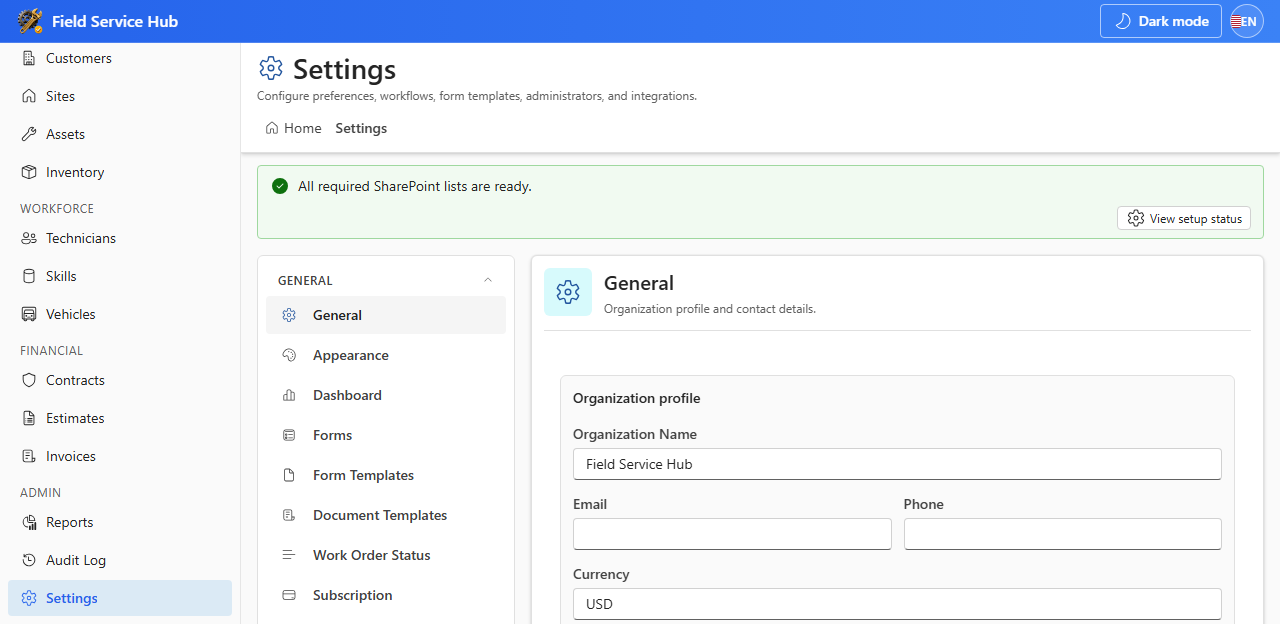
Complete Setup provisions lists only. Branding, numbering, workflows, and subscription settings are configured afterward by site owners or app administrators.