10.1 When Setup Runs
Setup is required when required SharePoint lists are missing or incomplete. The app shows a Complete Setup banner until provisioning finishes. Only a site collection owner (Full Control) can run setup. App administrators can open Settings to review status but cannot provision lists without site owner permission.
- First visit after deploying the web part — setup banner or wizard
- Complete Setup banner — site owner only
- Settings → Setup status — review list readiness and re-run if needed
Publish the SharePoint page before running setup. The wizard does not run while the page is in edit mode.
10.2 Setup Wizard Steps
| Step | What happens |
|---|---|
| Permission check | Verifies site owner access and detects existing SD_* lists |
| List provisioning | Creates 25+ SharePoint lists with fields, lookups, and views |
| Seed data (optional) | Loads demo tickets, categories, and KB articles when selected |
| Ready | Banner clears and the full app navigation loads |
10.3 Sample Data Option
During setup you can optionally seed demo tickets, categories, SLA policies, and knowledge articles so agents can explore queues immediately. Leave sample data unchecked on production sites.
- Sample rows are prefixed for easy identification in training tenants.
- Remove or reset sample content before go-live on production sites.
10.4 Post-Setup Checklist
- Settings → Organization Settings → General — organization name and contact details.
- Settings → Appearance — theme, accent color, and SharePoint chrome options.
- Settings → Auto-Numbering — incident, request, problem, and change prefixes.
- Settings → Roles & Permissions — assign administrators and custom roles.
- Settings → Notification Workflows and Email Integration — enable outbound mail.
- Settings → Archive Tickets — configure closed-ticket retention.
- Optional: pin Service Desk Hub as a Microsoft Teams channel tab.
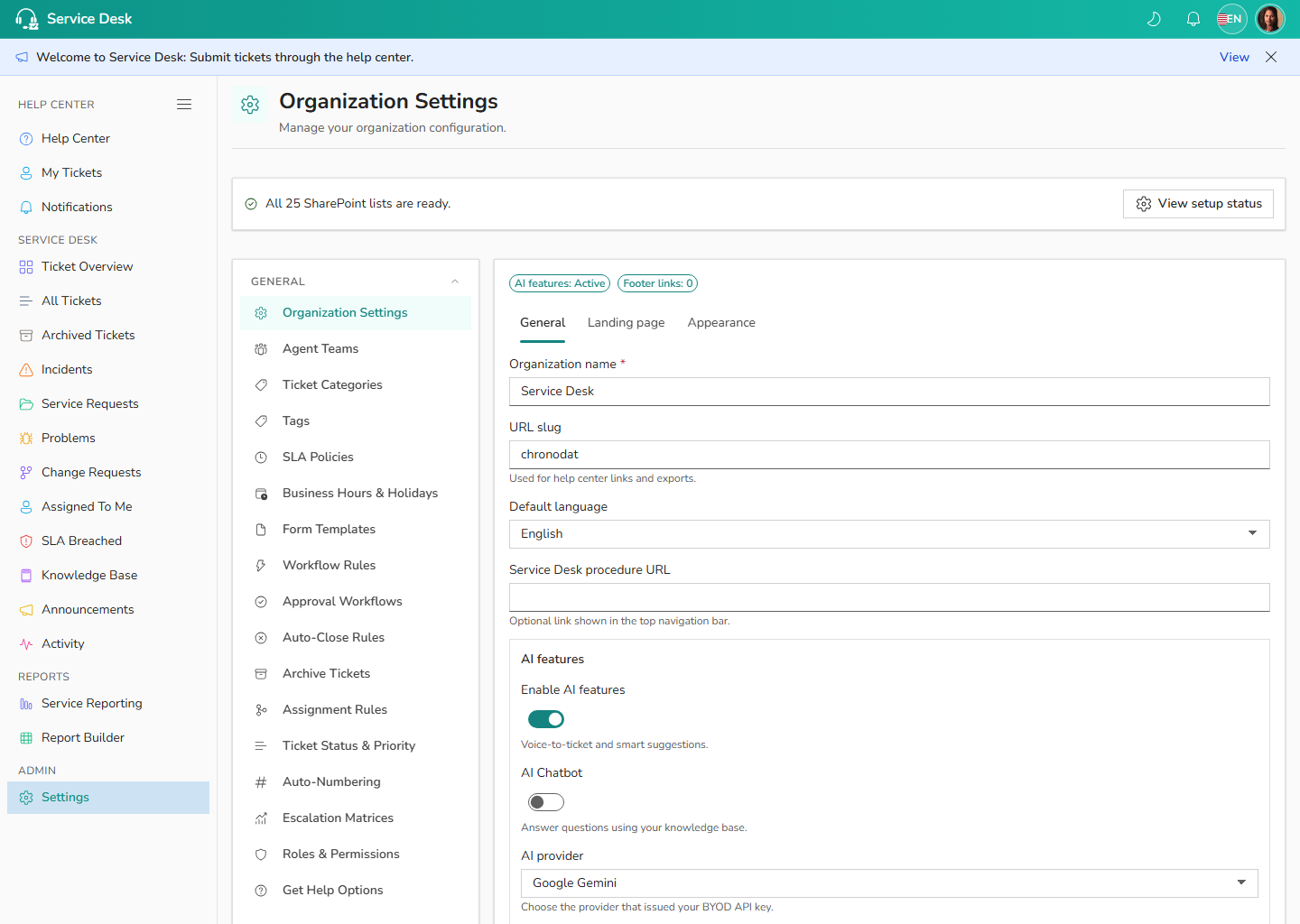
Complete Setup provisions lists only. Branding, numbering, workflows, roles, and subscription settings are configured afterward by site owners or app administrators.