Master schedule
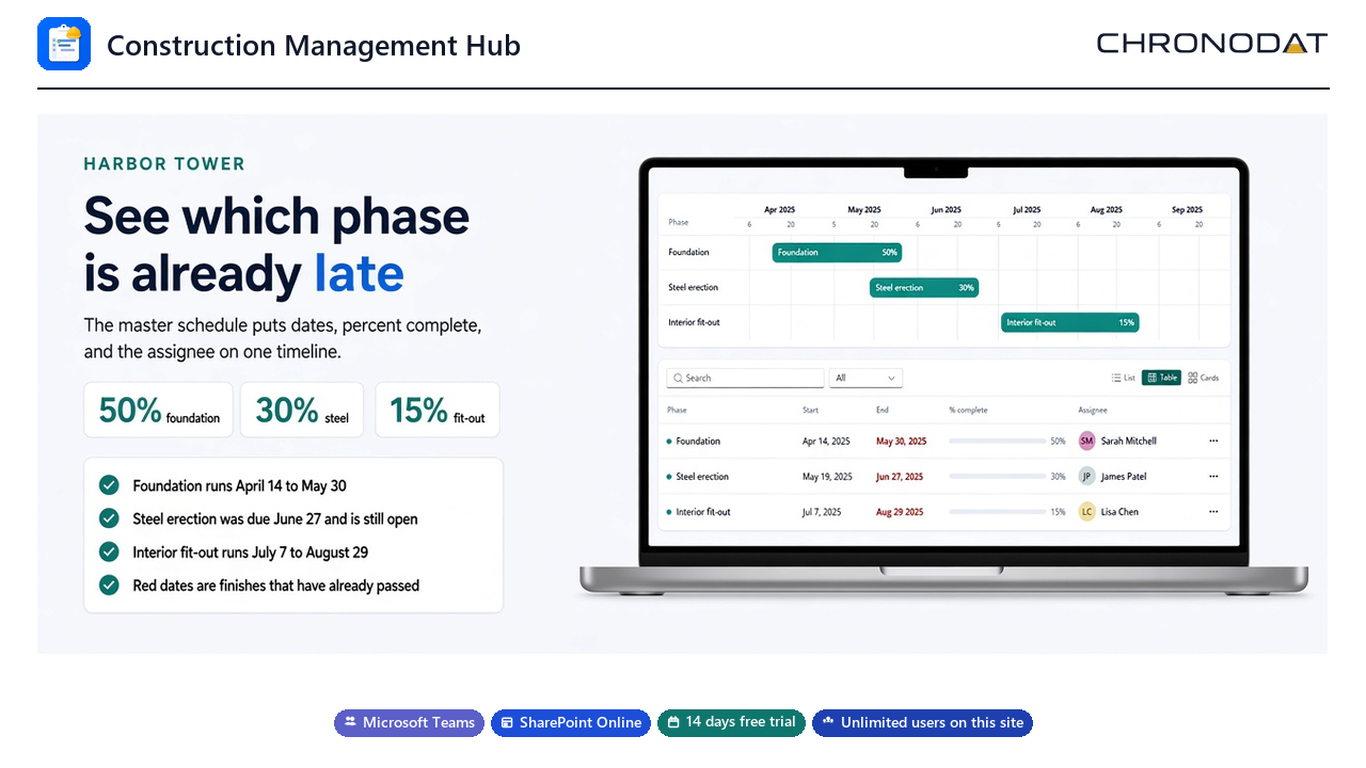
Schedule is the master schedule for the open project. The timeline shows each phase that has a start and an end. The table shows the start, the end, percent complete, and the assignee. A date that has already passed is shown in red when the phase is not complete. A schedule with no dated tasks shows the empty message in the table, and the timeline stays hidden until a task has both dates.
- Select New task.
- Enter the phase, dates, percent complete, and assignee.
- Save. The bar appears on the timeline when both dates are set.
- Open the row actions to edit or delete the task.
Daily logs
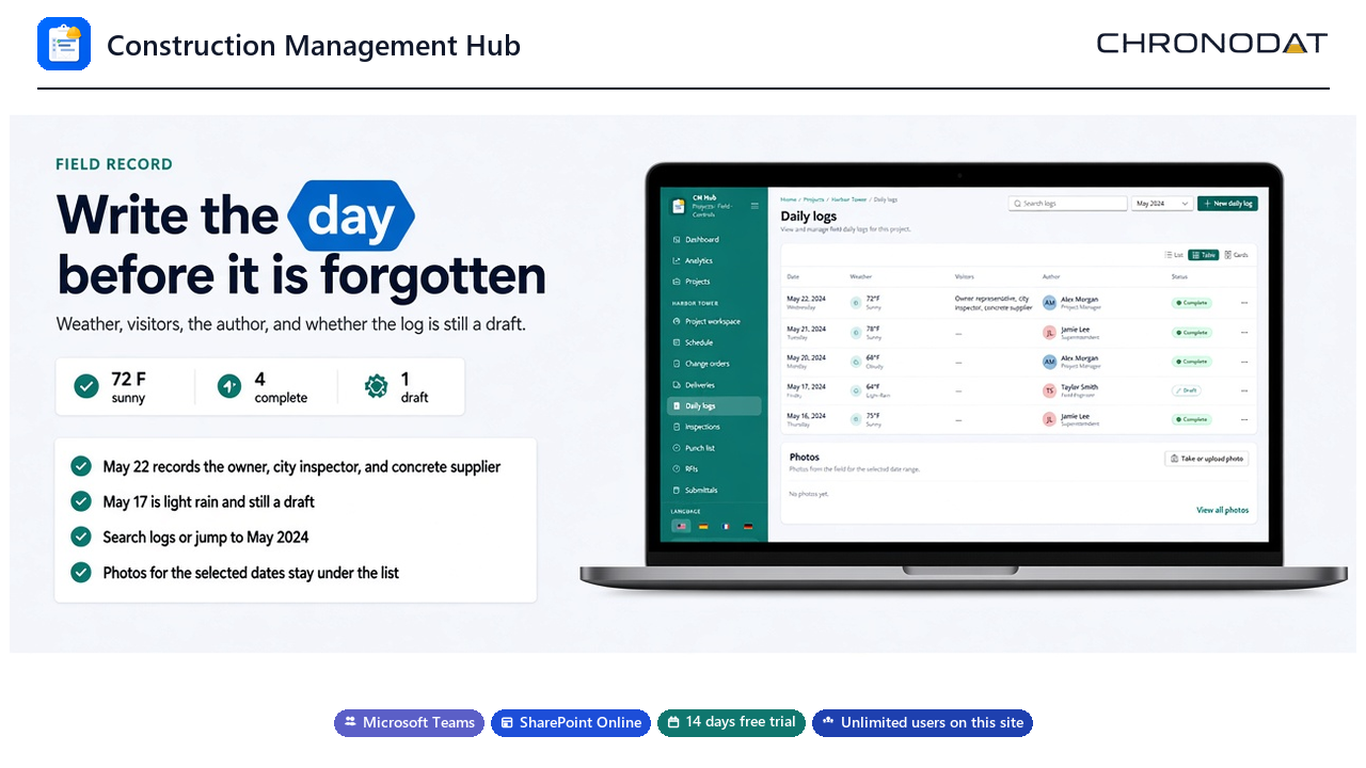
Daily logs is the field record for a date: weather, visitors, the author, and whether the log is Draft or Complete. Search the logs, or pick a month. Select New daily log, enter the date, weather, visitors, and notes, then save it as a draft or mark it complete. Take or upload photo adds photos for the selected date range. Weather can be a temperature and a condition, such as 72°F and Sunny.
Punch list
Punch list tracks deficiencies: number, name, location, trade, priority, status, assignee, and due date. Priorities are Low, Normal, and High. Select New item to add a deficiency. The row actions edit the item, add photos, or delete it. Photos are named from the punch number and title.
The rest of the job file
- Change orders record cost and schedule impact. Draft and Submitted stay pending until a later status.
- Deliveries track material that is ordered, on the way, or late.
- Inspections use a checklist and a result of Pass, Fail, or Conditional.
- Submittals track shop drawings through Approved, Rejected, or Closed.
- Accidents record safety incidents and severity.
- Manpower records hours by trade. Those hours feed the dashboard and analytics charts.
- Team lists the people on the job and the role stored for each person.
Row actions use the same Actions menu in the table, the list, and the cards.