Sidebar
The signed-in Microsoft 365 account is shown at the bottom of the sidebar. The main links are Dashboard, Analytics, and Projects. Settings is for site owners and named app administrators.
- Select a project name to open its workspace.
- Use Home in the breadcrumb to return to the dashboard.
- Back to top returns you to the page heading on a long screen.
- On a desktop the sidebar can be minimized. In a Teams tab it opens from the header.
Project workspace
The workspace heading is the project name. The summary shows the project code, client, location, project manager, budget, and start and end dates. Overall progress, schedule, open RFIs, open submittals, open punch, late tasks, and pending change orders sit under that summary. Contract value shows the original contract, approved changes, pending changes, and the revised contract. Pending changes are not in the revised total.
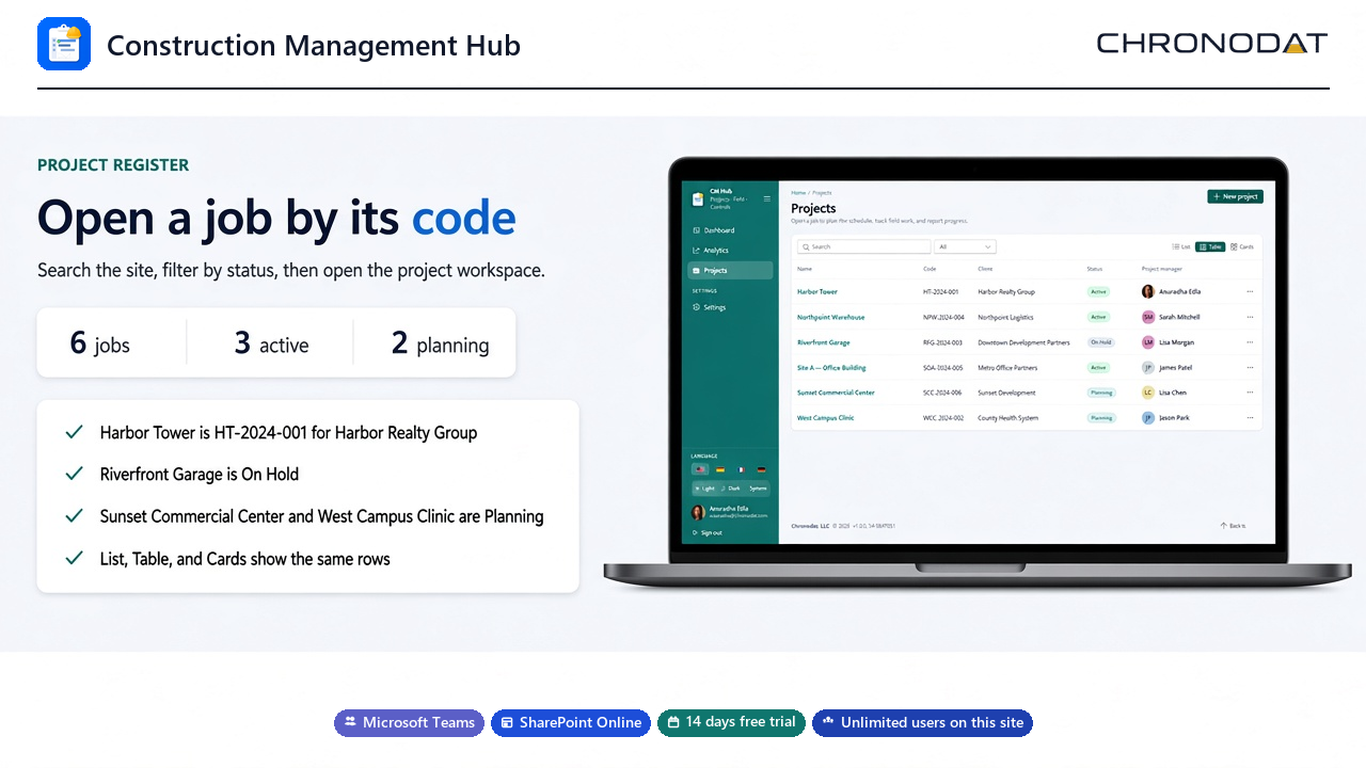
Search, filters, and views
Record pages share one toolbar. Search matches the visible name, number, and the other text on the row. Status and month filters appear when the list has those fields. List, Table, and Cards show the same records. Table is the starting view on record grids. Documents start in the list. The view you pick is remembered for that list in this browser session.
Language and appearance
The bottom of the sidebar has the language and the color mode: Light, Dark, and System. Languages are English, Español, Français, and Deutsch. Stored choice values such as Open, Closed, Draft, and Submitted stay in English so counts and filters stay stable. Dates follow the SharePoint regional settings.