Requests for information
RFIs raises a question, assigns it, and closes it. Each row has a number, subject, priority, status, assignee, and due date. Overdue dates are shown in red. Open and overdue RFIs roll up to the dashboard and to the project workspace. Closed and Answered count as finished.
Documents
Documents lists files for this project from the site library. Search by name, number, revision, discipline, status, or description. Filter by discipline, status, type, and month. Switch among list, table, and cards. List is the starting view.
- Select Upload files.
- In Document details, choose the files and set the discipline, status, and other details.
- Save. The file name is kept, with a unique prefix so two uploads do not overwrite each other.
- Use Edit details, Open, or Delete on the row.
Files stay in this site's Construction Management Hub document library. OneDrive is optional. If OneDrive is not approved, the file is still saved in the site library. This package does not request Files.ReadWrite.
Reports
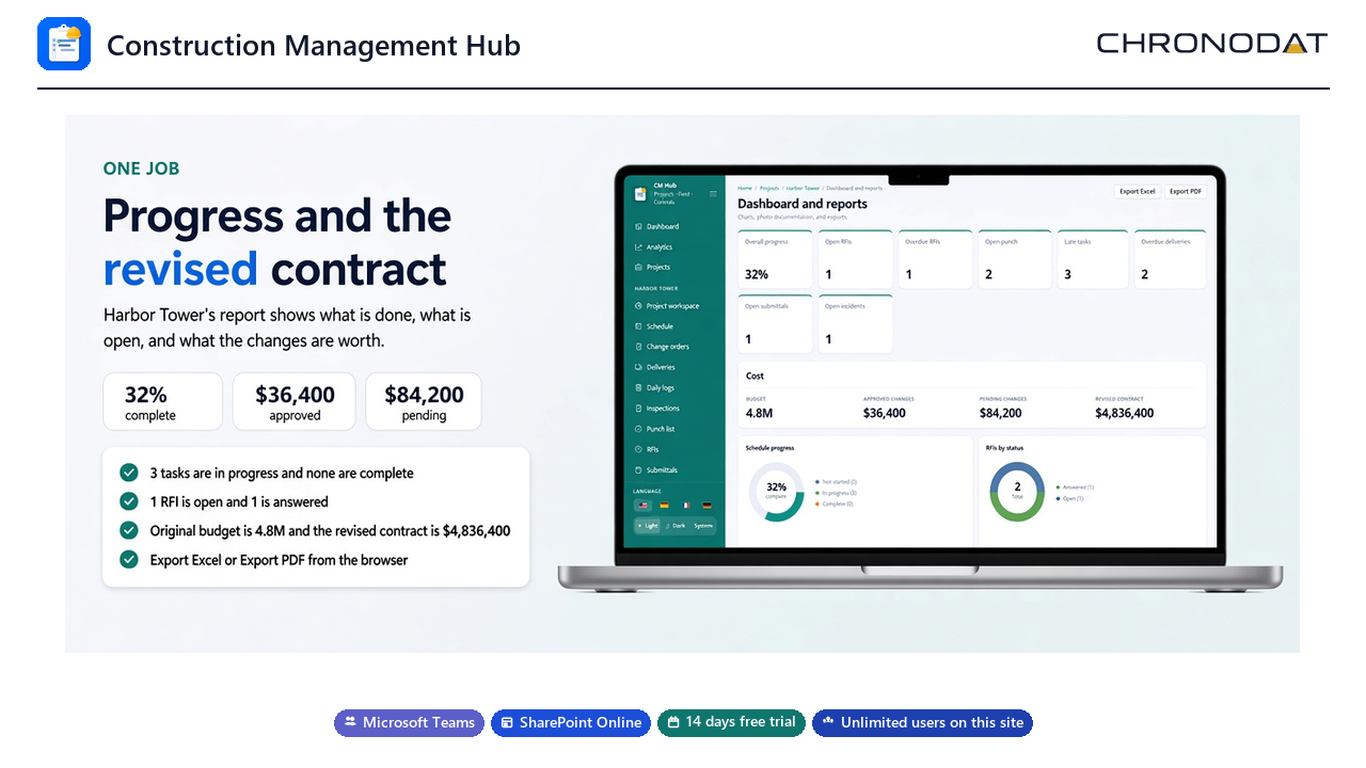
Dashboard and reports on a project is that job's progress, cost, schedule, RFIs, punch, and deliveries. Export Excel and Export PDF build the file in the browser. The cost panel shows the original budget, approved changes, pending changes, and the revised contract.