Copilot Integration Configuration Guide
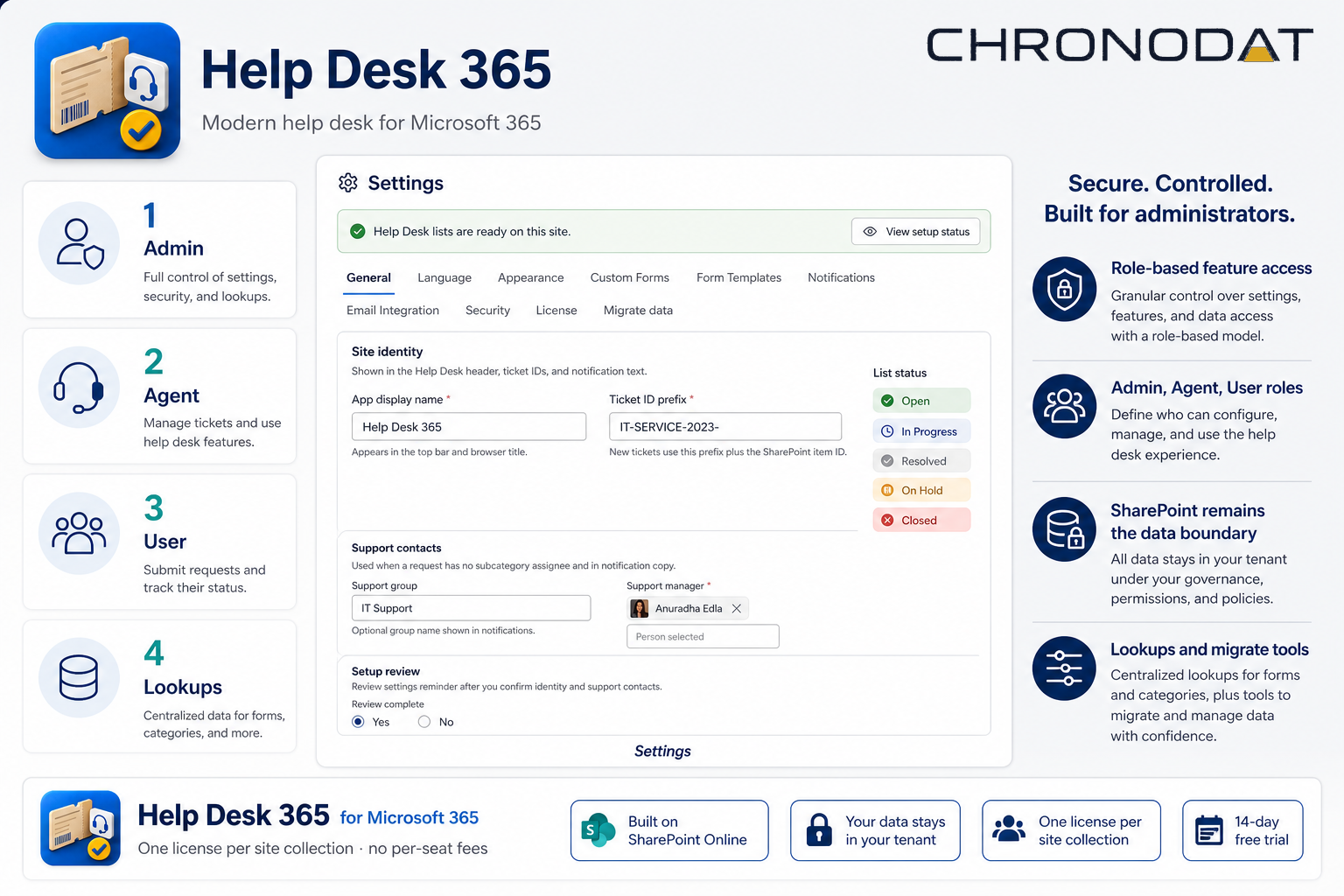
Step-by-step setup for connecting a published Copilot Studio agent in a SharePoint/SPFx solution. Configure Microsoft Entra ID authentication, collect connection values from Copilot Studio, and enable the Copilot Integration dialog in Help Desk 365.
- AudienceAdmins / Developers
- AuthenticationMicrosoft Entra ID
- Preferred connectionDirect Connect URL
- ProductHelp Desk 365 · SharePoint & Teams
Before you start
- A published Copilot Studio agent configured with Authenticate with Microsoft.
- Azure portal access to create or manage an app registration.
- SharePoint administrator access to deploy the SPFx solution.
Step 1 — Create or verify the Azure app registration
Help Desk 365 uses a single-page application (SPA) redirect flow so signed-in users can invoke your Copilot agent under their own Microsoft 365 identity.
- Open Azure Portal → Microsoft Entra ID → App registrations → New registration.
- Select Accounts in this organizational directory only (single tenant).
- Under Redirect URI, choose Single-page application (SPA) and enter your SharePoint site URL (the page where Help Desk 365 is hosted).
- In Authentication, add every SharePoint URL where the web part will run — site home, app page, and Teams-hosted surfaces if applicable.
- Under API permissions, add
CopilotStudio.Copilots.Invoke(Microsoft Copilot Studio / Power Platform). - Grant admin consent if your tenant requires it.
- Copy the Application (client) ID and Directory (tenant) ID — you will paste these into Help Desk 365.
The SPA redirect URI in Entra ID must match the SharePoint page URL users open. If you add the web part to multiple sites, register each URL or use a consistent app page per site collection.
Step 2 — Collect values from Copilot Studio
With the agent published and authentication enabled, gather the connection details Help Desk 365 needs to reach the agent.
- Open the published agent in Copilot Studio.
- Confirm authentication is enabled and set to authenticate with Microsoft (Entra ID).
- Copy the Microsoft 365 Agents SDK connection string (or Copilot URL shown for your published agent).
- Copy the Environment ID and Schema name (agent identifier) from the agent details or publish panel.
You will use either the Direct Connect URL alone, or the combination of Environment ID + Agent Identifier (schema name), depending on which fields your Copilot Studio publish experience exposes.
Step 3 — Open the Copilot Integration dialog
In Help Desk 365, site owners and administrators configure the integration from Settings.
- Sign in as a site owner or app administrator and open Settings.
- Turn on Copilot Integration.
- Paste the Copilot URL from Copilot Studio.
- Enter the Client ID and Tenant ID from your Azure app registration.
- Fill in the Direct Connect URL, or provide Environment ID and Agent Identifier (schema name) — use whichever pair your agent publish details supply.
- Leave Base URL blank unless your tenant or agent configuration explicitly requires it.
- Save settings, publish the SharePoint page if it is in edit mode, and verify the redirect URI is listed in Entra ID.
Open Help Desk 365 in a private browser window (or as a standard user) and confirm the Copilot panel loads and responds under the signed-in identity. Authentication errors usually mean a missing redirect URI or an unconsented CopilotStudio.Copilots.Invoke permission.
Configuration reference
| Field | Source |
|---|---|
| Client ID | Azure app registration → Application (client) ID |
| Tenant ID | Azure app registration → Directory (tenant) ID |
| Copilot URL | Copilot Studio published agent / M365 Agents SDK connection string |
| Direct Connect URL | Copilot Studio publish details (preferred when available) |
| Environment ID | Power Platform environment hosting the agent |
| Agent Identifier | Copilot Studio schema name for the published agent |
| Redirect URI | SharePoint page URL(s) where Help Desk 365 runs — must match Entra ID SPA entries |
Troubleshooting
- Sign-in loop or AADSTS error — Check SPA redirect URIs include the exact page URL (scheme, host, path).
- 403 / permission denied on invoke — Confirm
CopilotStudio.Copilots.Invokeis granted and admin-consented. - Agent not found — Verify Environment ID and schema name match the published agent, not a draft.
- Works in SharePoint but not Teams — Add the Teams-hosted SharePoint URL to the app registration redirect list.
For general Help Desk 365 deployment, see the Getting Started guide and Settings and Administration topics in the knowledge base.
Discussion
Comments