One risk register in Teams, two ways to open it
Keep the register on a dedicated SharePoint site. A channel tab can open that site from its own settings, with no script. The app pinned in the Teams app bar starts on the tenant root, and a SharePoint administrator saves the hub address once so everyone arrives in the same place.
Key takeaways
- Set up Risk & Compliance Hub once, on a dedicated SharePoint site.
- A channel tab reaches that site from the tab settings. No PowerShell.
- The pinned Teams app always opens the organization’s root site first.
- One script, run by a SharePoint administrator, stores the hub address for everyone who uses the pinned app.
- Leave the root site, and other team sites, without a second copy of the lists.
Start with one site
Risk & Compliance Hub stores risks, controls, assessments, and evidence in SharePoint lists. Those lists belong to one site. That site is the hub. Everything else — a SharePoint page, a channel tab, the icon in the Teams app bar — is a door into it.
Choose a site the risk and compliance owners already govern. Complete setup there, confirm the register looks right, and treat that address as the one the rest of the organization should open. A second setup, on the tenant root or on a new team site, creates a second register. Reviews then split, and nobody is sure which list is current.
Something like https://contoso.sharepoint.com/sites/RiskManagement. Any page on that site is enough. The app reads the site from the address you paste.
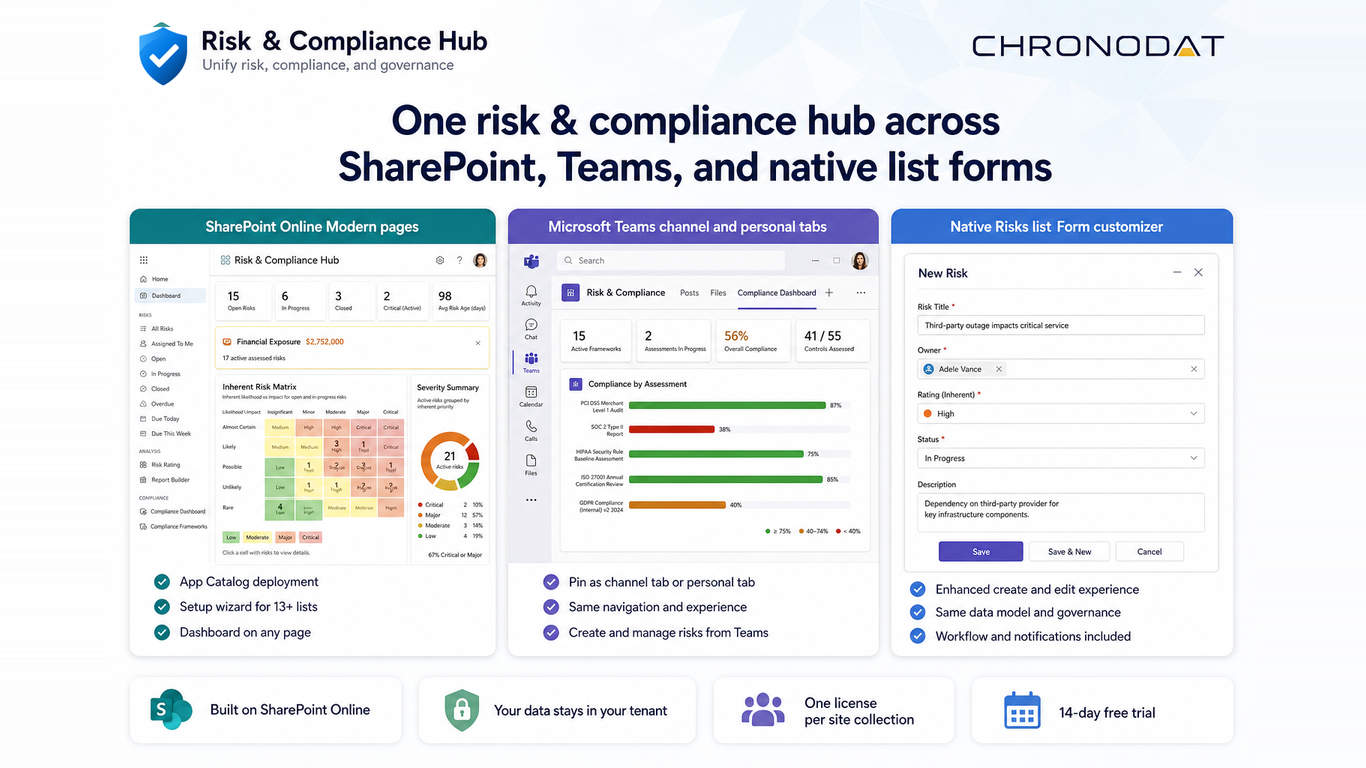
Two doors, and they do not start in the same place
Microsoft Teams offers the app in two places. They look similar after the register opens. They begin differently, and only one of them needs an administrator script.
| Channel tab | Pinned app in the Teams app bar | |
|---|---|---|
| Where it opens | That team’s SharePoint site | The tenant root site, every time |
| How you point it at the hub | Paste the hub address in the tab’s Risk & Compliance Hub site field | Save the hub address once for the organization |
| Who does the work | Whoever can add a tab in the channel | A SharePoint administrator, once |
| PowerShell | None | One script for the tenant |
| Best fit | A team that reviews risk together in a channel | People who should open the register from the Teams app bar |
A SharePoint page is a third door, and the simplest one. Add the web part on the hub site itself. That page uses the site it sits on. It never asks for a script, and it never shows the Teams connect screen.
Best practice with no script: a channel tab
This is the path we recommend when a team works in a channel. The tab stores the hub address in its own settings, so the organization-wide connection is optional.
Set up the hub once
On the dedicated SharePoint site, add Risk & Compliance Hub and finish setup. Confirm the register, owners, and permissions before you invite the rest of the organization in through Teams.
Add the tab
In the channel where the team reviews risk, add a tab and choose Risk & Compliance Hub. The tab settings panel opens before the app runs.
Paste the hub address
In Risk & Compliance Hub site, paste the dedicated site address. You can paste the address of any page on that site. Set the display name if you want the tab to read something shorter than the app name.
Close the panel
Close the settings with the X. The tab opens the hub. Repeat for every other channel that should see the same register. Each tab keeps its own copy of the address.
Leave Risk & Compliance Hub site blank only when that team’s own SharePoint site is the hub. A blank field means “use this team’s site if the hub is already set up there.” On any other team, a blank field falls through to the organization connection, or to the connect screen if that connection has not been saved yet. Filling the field is what keeps the tab on the dedicated site.
The note in the tab settings describes the same rule. When the hub is set up on the team’s site, the tab reads and writes there. Otherwise it uses the site the organization has connected for Teams. The field you just filled takes precedence over both.
Audit, security, and a project team can each have a tab. Point every tab at the same site and they share one register. A new team does not need its own setup.
When you want the app bar: one script, once
The icon in the Teams app bar is the personal app. Its address is the organization’s root site — https://contoso.sharepoint.com — because a Teams app published for every customer cannot contain one tenant’s site. The first time someone opens it, they see Connect to your Risk & Compliance Hub site.
That screen offers two choices. Paste the hub address and choose Connect, or choose Set up on this site and create the lists on the root. The second choice is the one to skip. It makes the root a second hub.
Connect tries to save the address for the whole organization, as a setting on the tenant app catalog. SharePoint blocks that write while custom script is turned off on the app catalog. Global Administrator and app catalog site collection administrator rights do not bypass that block. The app then keeps the address in that browser only, and Settings shows Saved for you only. The next person, on the next computer, sees the connect screen again.
A SharePoint administrator clears that once. The script below allows custom script on the app catalog, then stores the hub address under the key ChronodatRiskComplianceHubSiteUrl. After it succeeds, the pinned app opens the hub for everyone, and Settings on the hub site reads Saved for everyone in your organization.
Replace the admin center address and the hub address with yours. $catalog must be the app catalog site. It is not the root site, and it is not the -admin address.
Install-Module -Name Microsoft.Online.SharePoint.PowerShell `
  -Scope CurrentUser

Connect-SPOService -Url "https://contoso-admin.sharepoint.com"

$catalog = Get-SPOTenantAppCatalogUrl
$catalog

Set-SPOTenant -DelayDenyAddAndCustomizePagesEnforcement $false
Set-SPOSite -Identity $catalog -DenyAddAndCustomizePages $false

$hub = "https://contoso.sharepoint.com/sites/RiskManagement"
$description = "Risk & Compliance Hub site used by the Microsoft Teams app"
Set-SPOStorageEntity -Site $catalog `
  -Key "ChronodatRiskComplianceHubSiteUrl" `
  -Value $hub `
  -Description $description `
  -Comments ""
Get-SPOStorageEntity -Site $catalog `
-Key "ChronodatRiskComplianceHubSiteUrl"| Command | What it does |
|---|---|
Install-Module | Installs the SharePoint Online Management Shell for the current user. Skip it if the module is already there. |
Connect-SPOService | Signs in to the SharePoint admin center. Use an account that is a SharePoint administrator. |
Get-SPOTenantAppCatalogUrl | Returns the tenant app catalog. The hub address is stored on that site. |
Set-SPOTenant | Applies the custom-script change immediately, instead of waiting up to 24 hours. |
Set-SPOSite | Allows custom script on the app catalog so SharePoint accepts the storage write. |
Set-SPOStorageEntity | Saves the hub address for every user of the pinned app. |
Get-SPOStorageEntity | Reads the value back. Success is the hub URL. |
If Set-SPOStorageEntity still returns access denied (0x80070005), the custom-script change has not taken effect yet. Wait a few minutes and run the save again. Then close Teams completely, open it, and launch the app from the app bar. The connect screen should be gone.
The saved address stays in place. To point the pinned app at a different site later, open the new hub, go to Settings → Microsoft Teams, and choose Use this site for the Teams app. That button can write the organization setting once custom script is allowed on the app catalog. You can also run Set-SPOStorageEntity again with the new address. Either update is still once for the tenant, not once per person.
It connects the pinned app. Channel tabs, and the web part on the hub’s own SharePoint page, already know where the register lives. They do not use this script.
A few choices that keep the register whole
- One setupFinish setup on the dedicated site. Treat every later “Set up on this site” prompt as a new register, and skip it.
- Root site stays emptyThe pinned app opens there only long enough to follow the saved address. The lists stay on the hub.
- Tabs name the hubPaste the hub address into each channel tab, including teams that do not have the app set up on their own site.
- Permissions stay in SharePointPeople who open the hub from Teams need access to that site. The tab and the pinned app do not grant it.
Common questions
Does every person need to run the script?
No. A SharePoint administrator runs it once. After the address is saved, everyone who opens the pinned app uses that site.
Does a channel tab need the script?
No. The tab’s Risk & Compliance Hub site field is the whole configuration. Close the settings panel and the tab opens the hub.
We added the web part on a SharePoint page. Do we still need PowerShell?
Add the web part on the hub site and that page is done. It uses the site it sits on. PowerShell is for the pinned Teams app, when you also want the app bar icon to open that same site for the organization.
Why does Connect say the site was saved for me only?
The organization setting lives on the app catalog, and SharePoint refuses the write while custom script is off. The app keeps the address in that browser so you can continue, and the next person still sees the connect screen. The script is what makes the save apply to everyone.
Can we put the site address in the app package?
The published app is the same package in every tenant, so it cannot hold your site address. The address belongs in the channel tab, or in the tenant setting the script saves.
What if we already clicked Set up on this site on the root?
That created lists on the root. Decide which site is the register you want to keep, move people to that address, and stop setting the app up on additional sites.
Next step
Open the hub from the place your team already meets
Set the register up on one SharePoint site, add a channel tab that points at it, and run the administrator script only if you also want the Teams app bar to open that same site.
Discussion
Comments